
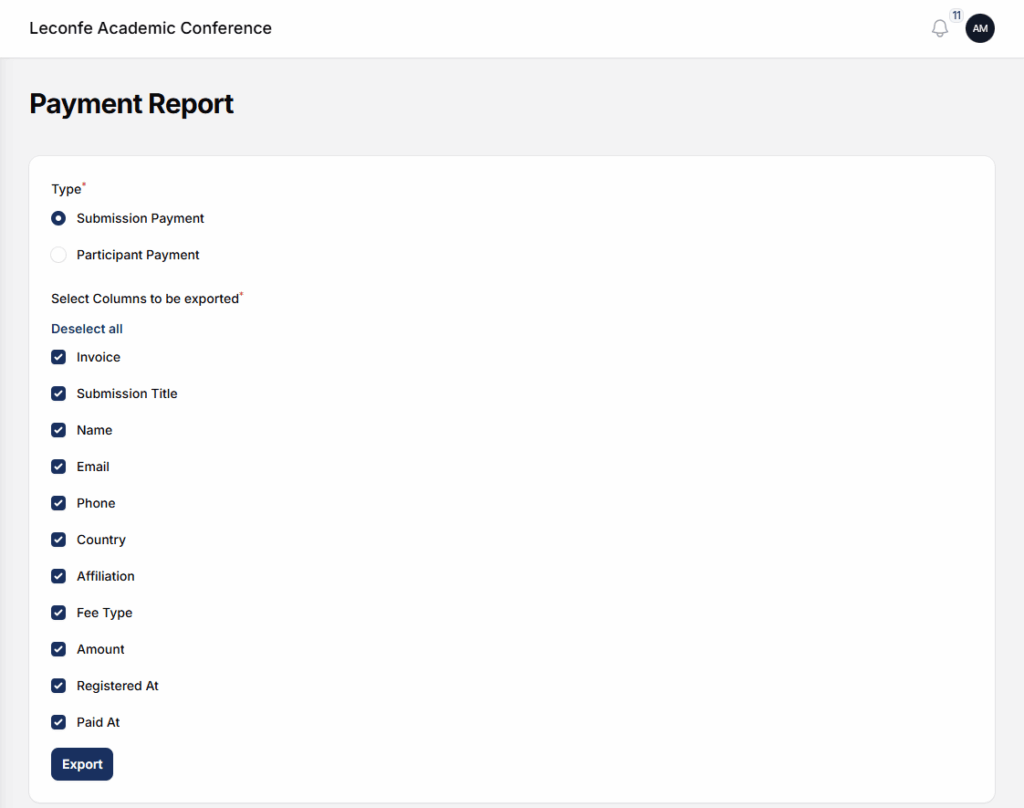
The Payment Report Plugin in Leconfe is designed to help conference administrators monitor, manage, and export payment data efficiently. This plugin provides a centralized report of all participant transactions, including payment status, payment methods, amounts, and related participant information.
With this plugin, organizers can easily track completed, pending, or failed payments and use the data for financial reporting, reconciliation, and administrative purposes.
Starting from Leconfe v1.4.1, the payment system includes automatic invoicing, receipts, and detailed payment tracking. The Payment Report plugin gives you a complete overview of all transactions.
How to Install and Activate the Payment Report Plugin
Log in to your Leconfe Dashboard.
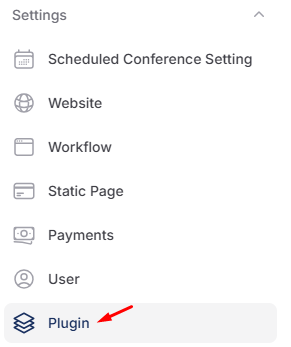
Navigate to Settings → Plugins (or Plugin Manager).
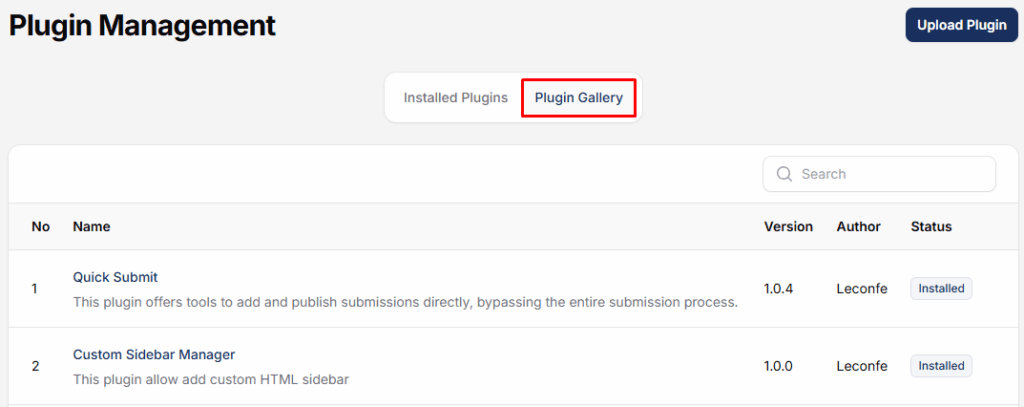
Locate Payment Report Plugin in the plugin list.

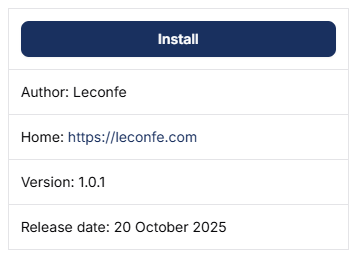
Click Install.
Wait until the installation process is completed successfully.
How to use the Report Payment plugin
After installation, remain on the Plugins page.
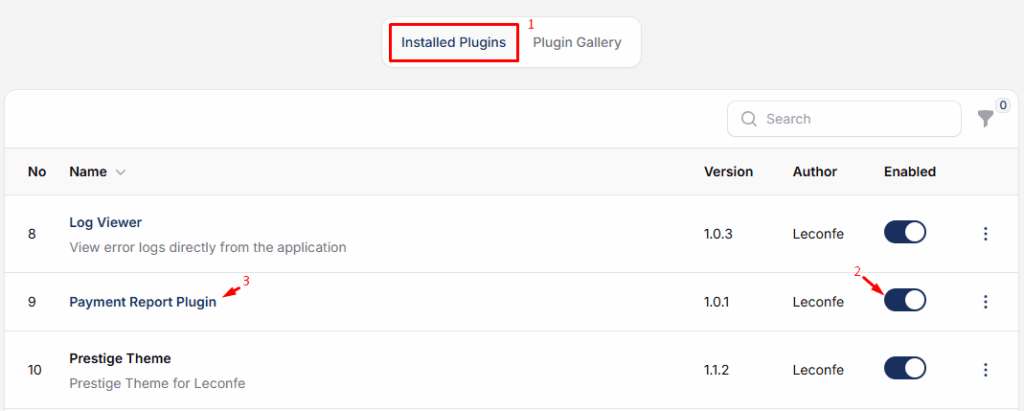
Find Payment Report Plugin in the installed plugins list.
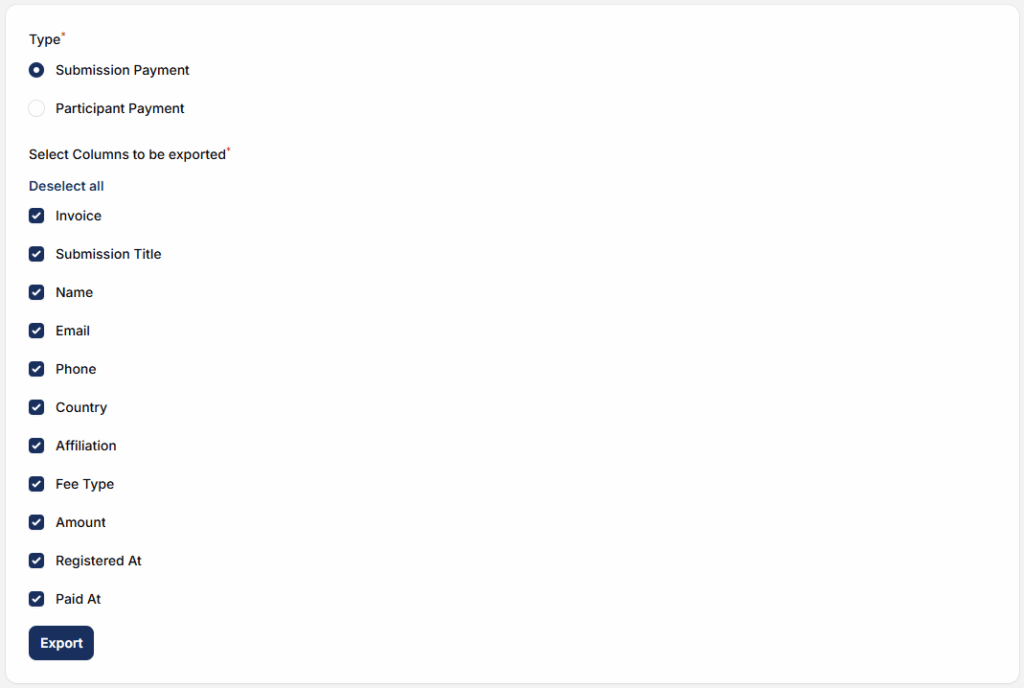
The system will display a list of all recorded payments. If needed, export the report for documentation or financial review.
What Information is Shown
The Payment Report shows the following information for each transaction:
- Payment ID — A unique identifier for each payment
- Participant/Author Name — The name of the person who made the payment
- Payment Amount — The total amount paid
- Payment Method — The method used for payment (e.g., credit card, PayPal)
- Payment Status — The current state of the payment (Paid, Pending, Failed, or Refunded)
- Payment Date — The date and time when the payment was made
Understanding Payment Statuses
Each payment in the report has a status that tells you its current state. Here is what each status means:
- Paid — The payment was successful and the transaction is complete.
- Pending — The payment is waiting for confirmation. The money has not been received yet.
- Failed — The payment did not go through. This may happen due to incorrect details or insufficient funds.
- Refunded — The money has been returned to the payer.
Exporting and Filtering
You can export the payment report to a file for offline record keeping or sharing with your finance team. Use the filters at the top of the report to narrow down the results:
- Filter by Date Range — View payments made within a specific period.
- Filter by Payment Status — Show only Paid, Pending, Failed, or Refunded payments.


