
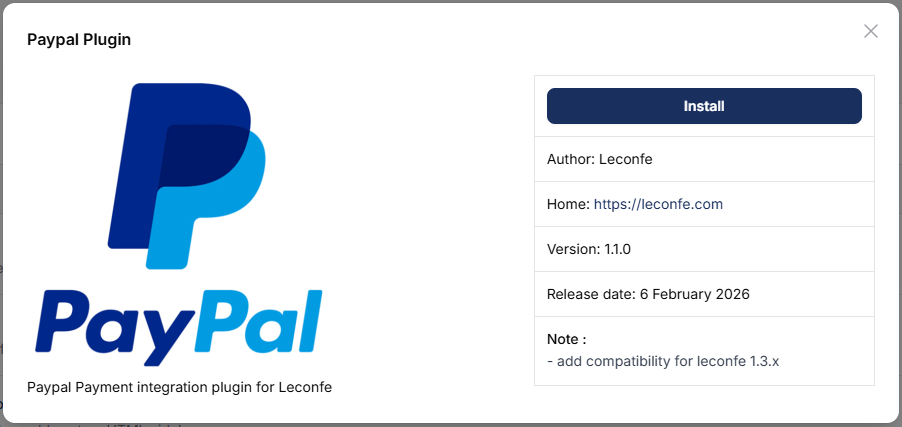
The PayPal plugin is an automatic payment feature that enables you to receive payments, set up the payment system, and verify transactions automatically. Starting from Leconfe v1.4.1, the payment system supports multiple payment methods, automatic invoicing, and receipt generation. The PayPal plugin integrates directly with these new features.
1. Initial Requirements
Before using PayPal Payment on Leconfe, please make sure that:
✅ You already have a PayPal Business account
✅ The minimum version of Leconfe used is 1.4.x.
✅ Your conference is active on Leconfe
✅ The payment feature has been created and activated
✅ The PayPal plugin has been installed
Note: For the Cloud version, the PayPal plugin will be available after the official release.
2. Getting API Credentials from PayPal
Log in to PayPal Developer:
https://developer.paypal.com
Go to Dashboard → My Apps & Credentials, select:
- Live (for production)
- Sandbox (for testing)
Click Create App
Take note of the following information:
- Client ID
- Secret Key
This data will be used in Leconfe.
For more technical details about PayPal REST APIs, please refer to the official documentation:
https://developer.paypal.com/api/rest/
3. Enabling the Plugin in Leconfe
Log in to your scheduled conference and go to Plugins → Plugin Gallery.
Then, search for PayPal Payment Plugin and install it.
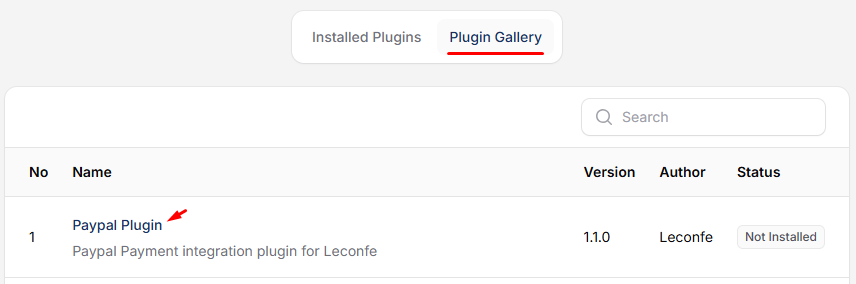
After the plugin has been successfully installed, activate it in the Installed Plugins tab.

4. Configuring PayPal as an Automatic Payment Method
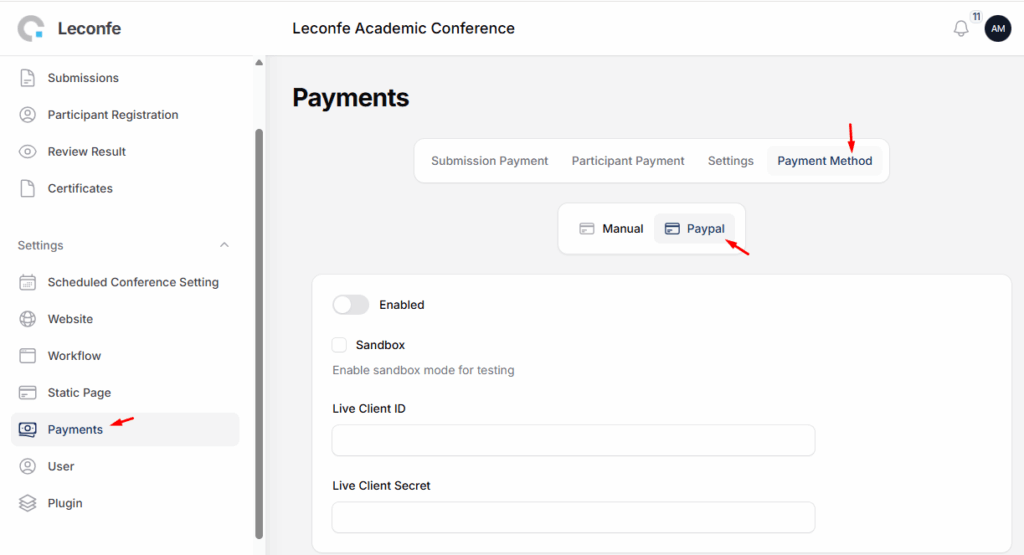
Go to the Payment menu and open the Payment Method → PayPal tab. Enable the PayPal payment method and enter the Client ID and Secret ID that you obtained in the previous steps.
On this page, you can enable Sandbox Mode if you want to simulate the payment process from this plugin.
After completing the setup, conduct a test by registering as a participant or presenter to verify that the payment process is functioning correctly.
5. Testing Your Setup
Before accepting real payments, test your setup using Sandbox Mode. Sandbox Mode lets you simulate a payment without using real money.
How to run a test payment:
- In the Payment Method settings, turn on Sandbox Mode.
- Register for your conference as a participant (or use a test account).
- Complete the registration and proceed to payment.
- You will be redirected to the PayPal Sandbox checkout page. Use a PayPal Sandbox test account to pay.
- After payment, you will be returned to Leconfe with a confirmation.
Verify the payment: Go to Payment → Payment Report. Your test payment should appear in the list with a status of Completed.
Once everything works correctly, turn off Sandbox Mode to start accepting real payments.
6. Troubleshooting
Wrong credentials error: Double-check your Client ID and Secret Key. Make sure you copied them from the correct PayPal environment. Sandbox credentials will not work in Live mode, and Live credentials will not work in Sandbox mode.
Payment not appearing: If a payment does not show in the Payment Report, check that the plugin is activated and that Sandbox Mode is set correctly for your testing environment.
Sandbox vs Live mode confusion: Always test in Sandbox Mode first. Live Mode processes real money. If you see a PayPal login page instead of a Sandbox test page during testing, Sandbox Mode may be turned off in your Leconfe settings.
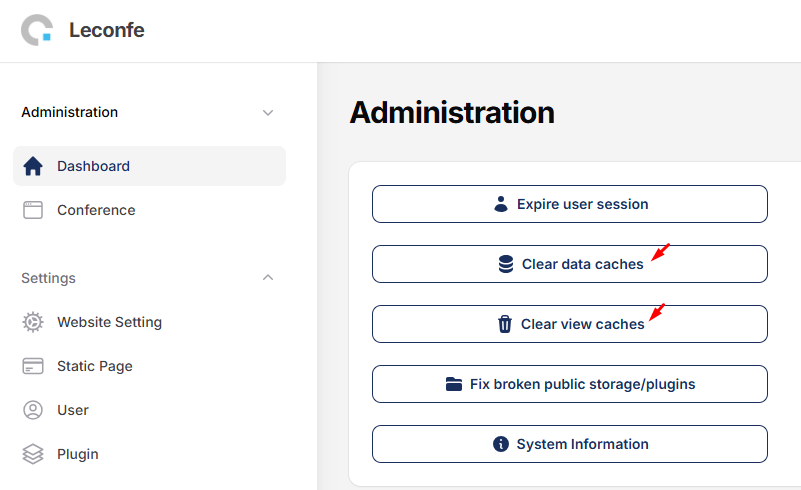
Plugin not visible: Clear the data cache and view cache from the administrator panel, then check the Plugin Gallery again.


