
The Presentation feature gives a scheduled conference one place for accepted presentation materials. Presenters can add Google Slides, YouTube, PDF, or downloadable files. Eligible conference users can browse the final presentations, view them, like them, and join comment discussions during the configured presentation period.
This guide is for Conference Managers, Editors, Presenters, and Participants using Leconfe 1.5. Available menus and actions depend on the user’s role, the submission stage, the presentation window, and the scheduled-conference configuration.
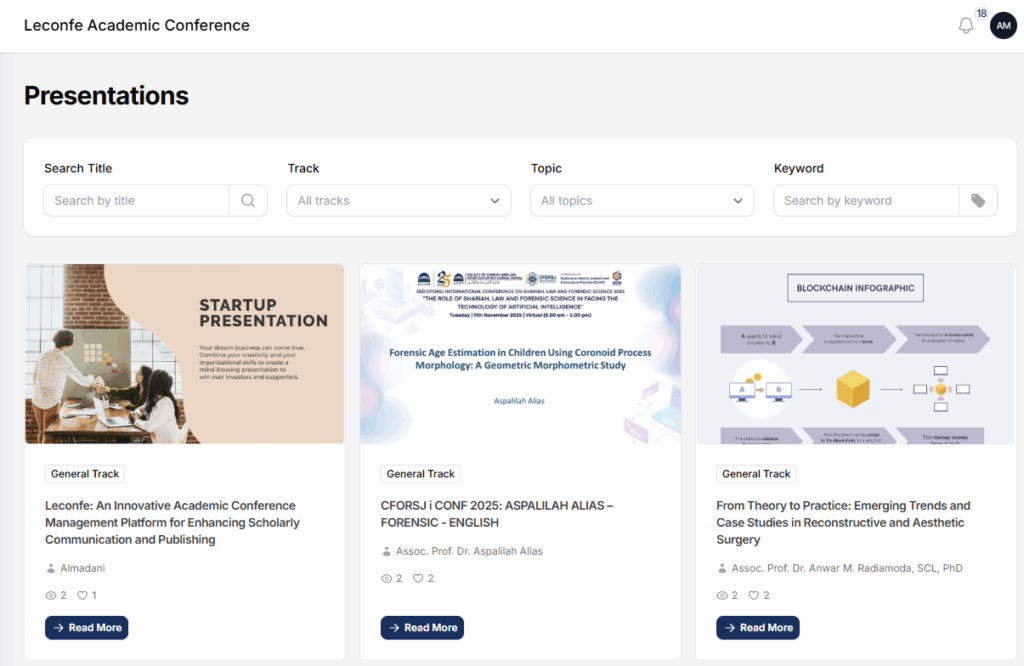
Supported Presentation Types
- Google Slide: an embedded presentation published through Google Slides.
- YouTube: an embedded Public or Unlisted YouTube video.
- PDF: an uploaded PDF that can be displayed in the presentation viewer.
- Other: an uploaded file such as PowerPoint or Keynote that participants download because inline preview is unavailable.
Before You Start
Make sure that:
- you are working in the correct scheduled conference;
- the paper has been accepted or review has intentionally been skipped;
- the submission is in the Presentation stage;
- the presenter or editor has permission to manage the presentation record;
- the Presentation Open Date and Close Date use the intended conference timezone;
- the conference has defined its sharing, copyright, and comment-moderation rules; and
- Google or YouTube content is permitted to be externally accessible to the intended audience.
External-platform warning: Google Slides published to the web and Public or Unlisted YouTube videos can be accessible outside Leconfe. Do not publish confidential, embargoed, or unauthorized material.
Understand the Presentation Workflow
- An editor accepts the paper after peer review or uses Skip Review when conference policy allows it.
- Leconfe moves the submission to Presentation with the status On Presentation.
- The presenter or authorized editor adds one or more presentation records.
- One record is marked Final Presentation.
- During the presentation window, eligible users find the final record in the Presentation list.
- After presentation requirements are complete, an editor sends the paper to Editing.
Adding dates does not move a paper into Presentation and does not create presentation files automatically. The submission must reach the correct workflow stage, and a presentation record must be added to it.
Configure the Presentation Window
An authorized manager or editor can configure when the Presentation listing is available to participants:
- Open the scheduled conference.
- Go to Workflow > Presentation.
- Set the Presentation Open Date.
- Set the Presentation Close Date.
- Make sure the close date is the same as or later than the open date.
- Save the settings.
- Test the Presentation menu using an eligible participant account during the configured period.
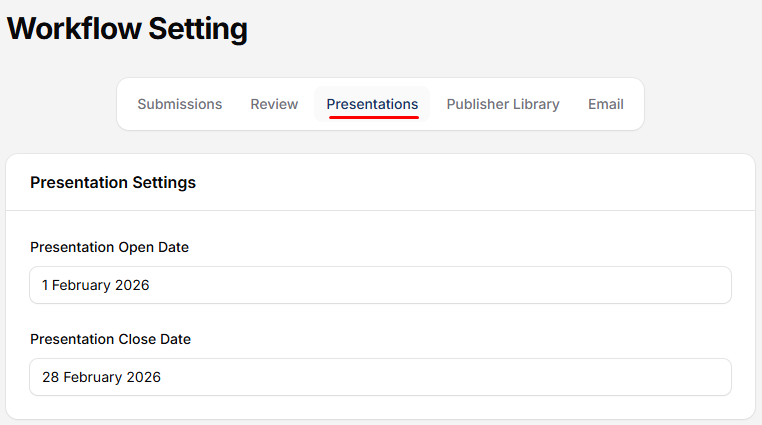
Users authorized to update the scheduled conference can access presentation administration outside the participant presentation window. Participant navigation is controlled by the configured presentation period.
Open the Submission’s Presentation Stage
The public presentation data comes from presentation records attached to a submission in the Presentation stage. Open the accepted paper and confirm its title, presenter, status, and stage before adding materials.
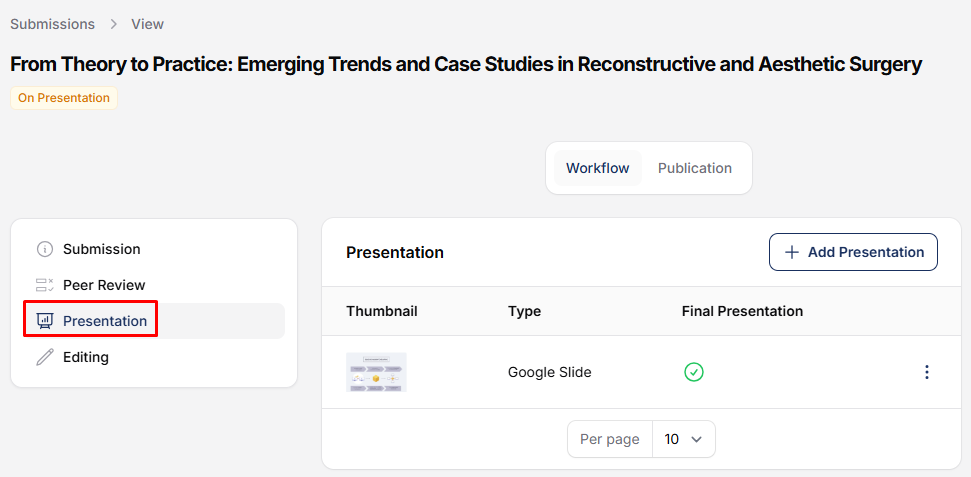
Add a Presentation Record
- In the submission’s Presentation stage, open the presentation list.
- Select Add Presentation.
- Choose Google Slide, YouTube, PDF, or Other.
- Enter the required link or upload the required file.
- Add a thumbnail when appropriate.
- Choose Set as Final Presentation when this version should be participant-facing.
- Save and preview the presentation.
The first presentation created for a submission becomes Final automatically when it is the only presentation. Additional versions can be created later, but only one record can be Final at a time.
Configure a Google Slides Presentation
Leconfe requires a published Google Slides URL. A normal editing or sharing link is not the same as a published URL.
Publish the Slides to the Web
- Open the presentation in Google Slides.
- Check that the slides do not contain confidential information.
- Use File > Share > Publish to the web.
- Select the presentation or embed publishing option.
- Confirm the publishing action.
- Copy the generated published link.
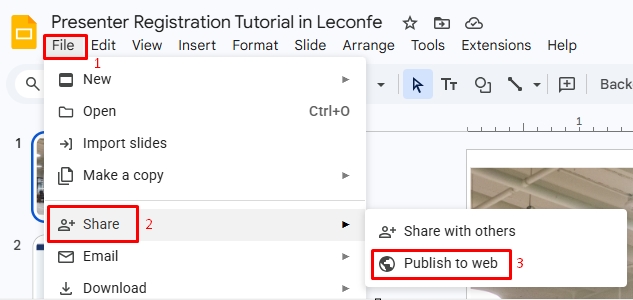
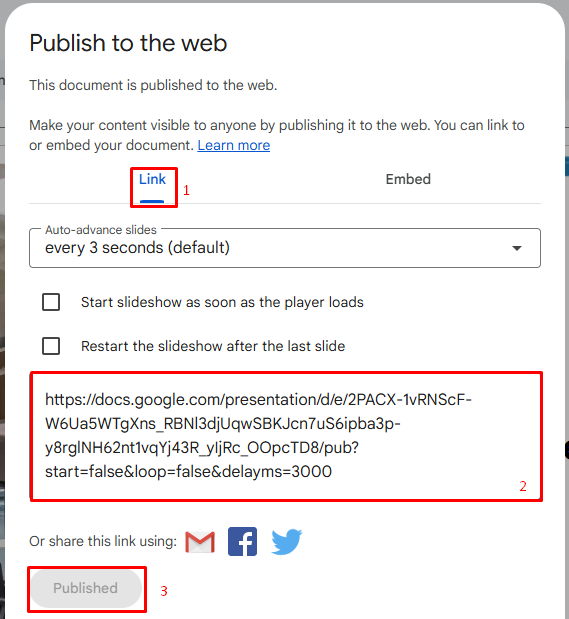
Add the Published URL to Leconfe
- Select Google Slide as the presentation type.
- Paste the generated link into Google Slide Published URL.
- Upload a thumbnail image.
- Save and open Preview.
- Test the slides in a private browser window or while signed out of Google.
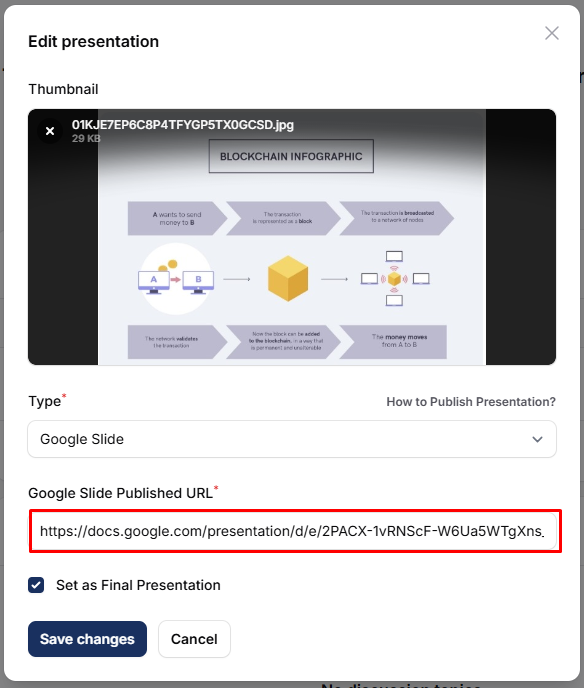
Do not paste the Google Slides editing URL. Leconfe 1.5 validates the published Google Slides format. “Anyone with the link can view” alone does not create the required embed URL.
Configure a YouTube Presentation
Prepare the Video
- Upload the presentation video to the correct YouTube channel.
- Set it to Public or Unlisted.
- Make sure embedding is allowed.
- Open the video and identify its unique video ID.
For a URL such as https://www.youtube.com/watch?v=AbC123xyz, the video ID is AbC123xyz. For a shortened URL such as https://youtu.be/AbC123xyz, the ID is the value after the final slash.

Add the Video ID to Leconfe
- Select YouTube as the presentation type.
- When Leconfe already displays the prefix
https://www.youtube.com/watch?v=, paste only the video ID. - Save the presentation.
- Preview the embedded video.
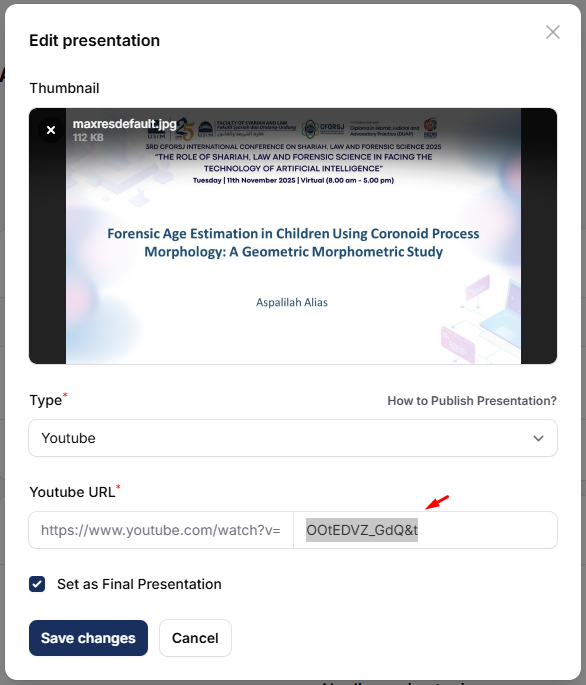
Manage the YouTube Thumbnail
Leconfe can retrieve a YouTube thumbnail automatically when the record is created. Use Generate Thumbnail to retrieve or refresh it when necessary. You can also upload a suitable image manually.
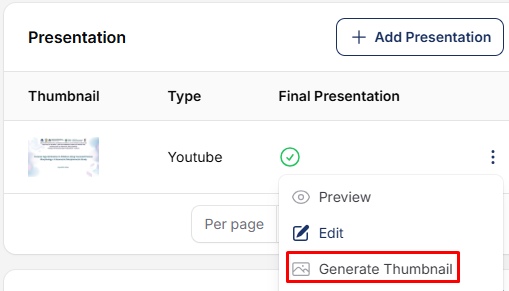
If the video does not play, verify that it is not Private, removed, age-restricted, region-blocked, or configured to prevent embedding.
Upload a PDF Presentation
- Select PDF as the presentation type.
- Upload a valid PDF file.
- Wait for the upload to finish.
- Upload a clear thumbnail image.
- Save and preview the PDF.
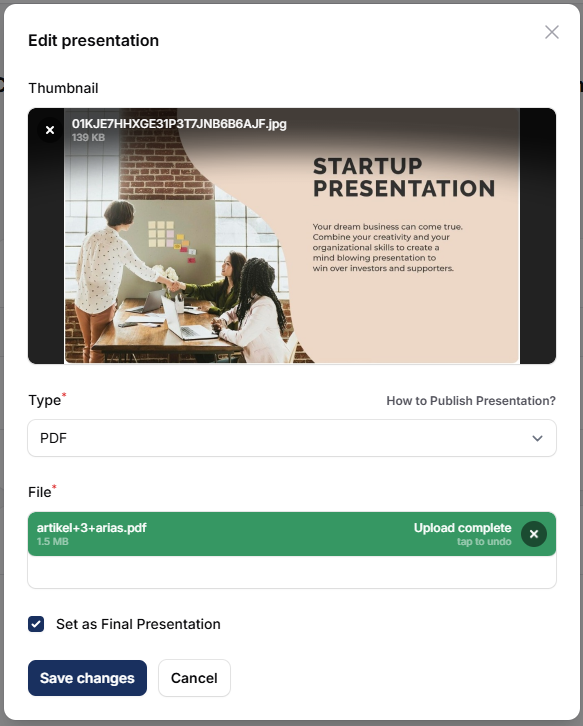
Use a web-optimized PDF with readable text, sensible page dimensions, and an accessible file size. Remove comments, hidden personal data, or editing marks before uploading the final version.
Upload Other Presentation Files
Use Other for a file that is not Google Slides, YouTube, or PDF, such as PowerPoint or Keynote.
- Select Other.
- Upload the presentation file.
- Use a descriptive filename that includes the presenter or paper title.
- Upload a thumbnail manually.
- Save and test the download.
Other files do not have an inline preview in Leconfe. Participants must download the file and open it in compatible software. Prefer widely supported formats and avoid executable or unsafe file types.
Mark the Final Presentation
A submission can have multiple presentation records, but only the Final Presentation appears in the participant-facing listing.
- Open the presentation list on the submission.
- Preview the replacement version.
- Check the file or link, thumbnail, and content.
- Select Set as Final Presentation.
- Confirm the action.
- Open the participant Presentation page and verify the selected version.
Selecting a new final presentation automatically removes the final designation from the previous version. Do not delete an older version until the new record has been tested.
Find Presentations as a Participant
During the configured presentation window, eligible users can open the Presentation page and find final presentations using:
- title search;
- track filter;
- topic filter when topics are configured;
- keyword search; and
- pagination through the available results.
If a presentation does not appear, check the submission stage, final designation, presentation window, filters, and scheduled conference.
Views, Likes, Comments, and Replies
Eligible signed-in conference users can interact with the final presentation:
- View: Leconfe records a user’s view once for the presentation record.
- Like: selecting the heart adds a like; selecting it again removes that user’s like.
- Comment: users can post a question or response in the presentation discussion.
- Reply: users can reply to an existing presentation comment.
- Edit or delete: these controls appear only when the user is authorized.
Comments should follow the conference code of conduct. Organizers should define how inappropriate, copyrighted, personal, or off-topic content is reported and moderated.
Send the Paper to Editing
After the presentation requirements are complete, an authorized editor opens the submission and selects Send to Editing. Publication staff then complete the final files, metadata, contributors, permissions, proceeding assignment, and publication checks.
See Complete Submission, Peer Review, and Editorial Workflow in Leconfe and Managing Submissions, Peer Review, and Publication in Leconfe.
Troubleshooting
The Presentation Menu Is Missing
- Check the Presentation Open Date and Close Date.
- Confirm the scheduled conference and current timezone.
- Confirm that the user has an eligible role and is signed in.
Google Slides Does Not Display
- Use the published `/d/e/…/pub` or `/pubembed` URL.
- Do not use an `/edit` or ordinary sharing URL.
- Test the link while signed out of Google.
YouTube Does Not Play or Has No Thumbnail
- Paste only the video ID when the URL prefix is already displayed.
- Confirm the video is Public or Unlisted and embedding is allowed.
- Use Generate Thumbnail after correcting the video ID.
The Presentation Does Not Appear in the List
- Confirm that the correct record is marked Final.
- Confirm the paper belongs to the current scheduled conference.
- Clear the title, track, topic, and keyword filters.
- Check that the participant presentation window is open.
The Presenter Cannot Add or Edit a Presentation
- Confirm that the paper is in the Presentation stage.
- Confirm the user is attached to the correct submission and scheduled conference.
- Ask an authorized manager to verify role permissions.
Final Checklist
- The presentation window uses the correct dates and timezone.
- The paper is in Presentation and the presenter has permission to manage it.
- The Google Slides published URL, YouTube video ID, or uploaded file has been tested.
- The thumbnail is clear and appropriate.
- Exactly one presentation is marked Final.
- The final record appears in the participant Presentation listing.
- External sharing, copyright, privacy, and moderation requirements are satisfied.
- The paper is ready to move to Editing after presentation activity is complete.
Result: Participants can find and open the intended final presentation, while organizers retain a clear path from accepted submission to Editing.


