
Applies to: Leconfe 1.5.0-beta.3
The Administration panel contains installation-wide tools for managing conference series, website settings, plugins, static pages, system information, and maintenance tasks. The options you see depend on the permissions assigned to your account.
Important: Leconfe 1.5.0-beta.3 is a pre-release. Labels and screen layouts may still change before the final 1.5.0 release. The screenshots on this page come from an earlier interface, but they remain useful for identifying the related sections.
Before You Start
- Sign in with a Site Administrator account or an account that has the required permission for the task.
- Confirm whether the change should affect the whole Leconfe installation, one conference series, or one scheduled conference.
- Create a current backup before installing or removing plugins, upgrading Leconfe, or running maintenance actions.
- Perform disruptive maintenance during a low-traffic period and notify active users when appropriate.
- Use a staging installation to test plugins and major configuration changes whenever possible.
Understand the Administration Scope
Leconfe separates global administration from conference-specific work. This distinction prevents changes from being made in the wrong place:
- Administration panel: manages the complete Leconfe website, conference series, global website settings, plugins, and maintenance tools.
- Conference panel: manages the continuing conference series.
- Scheduled Conference panel: manages one specific event, including dates, submissions, reviewers, participants, fees, and schedules.
If a menu described below is missing, your account probably does not have the required permission. Contact a Site Administrator instead of trying to work around the restriction.
Administration Dashboard
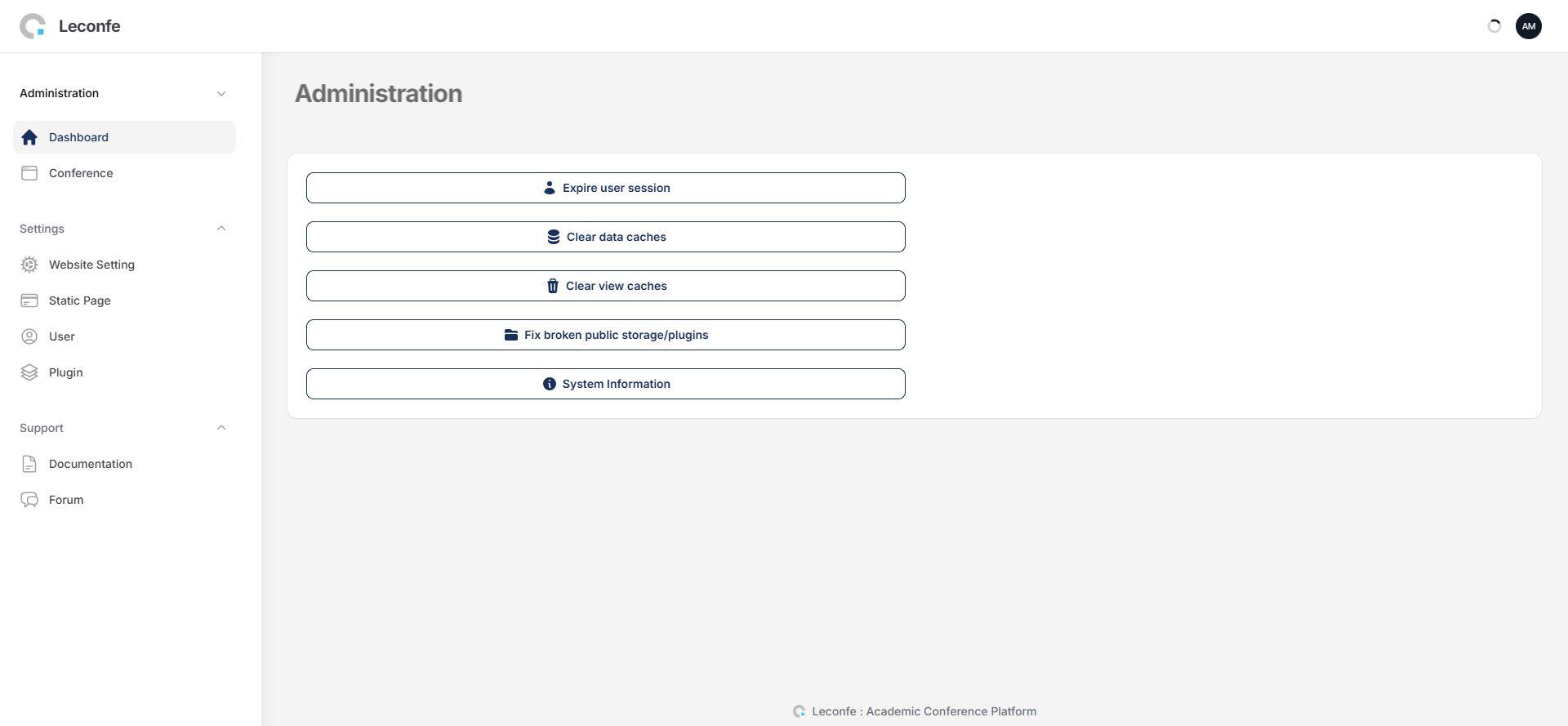
After signing in, open the Administration panel. Users with the Administration:view permission see the complete administration dashboard and its maintenance tools. Other users may see only My Scheduled Conferences.
Maintenance Tools
Use these actions only when needed. Read the confirmation message before continuing:
- Expire User Session: refreshes the current administrator session, signs the same administrator back in, and regenerates the session. Use it when the current login session or permissions appear stale.
- Clear Data Caches: clears application and optimization caches. Use it after configuration, upgrade, or deployment changes are not reflected correctly.
- Clear View Caches: rebuilds cached views and icons. Use it when the interface still shows an outdated layout after an update.
- Fix Broken Public Storage/Plugins: recreates required public storage and plugin links. This can help after a server migration or when uploaded files or plugin assets are no longer reachable.
- System Information: opens version and installation information that can help with upgrades and support requests.
Caution: Do not repeatedly clear caches or relink storage as a routine fix. First confirm the symptom, make a backup when the action could affect files or plugins, and verify the result after running it.
Manage Conference Series
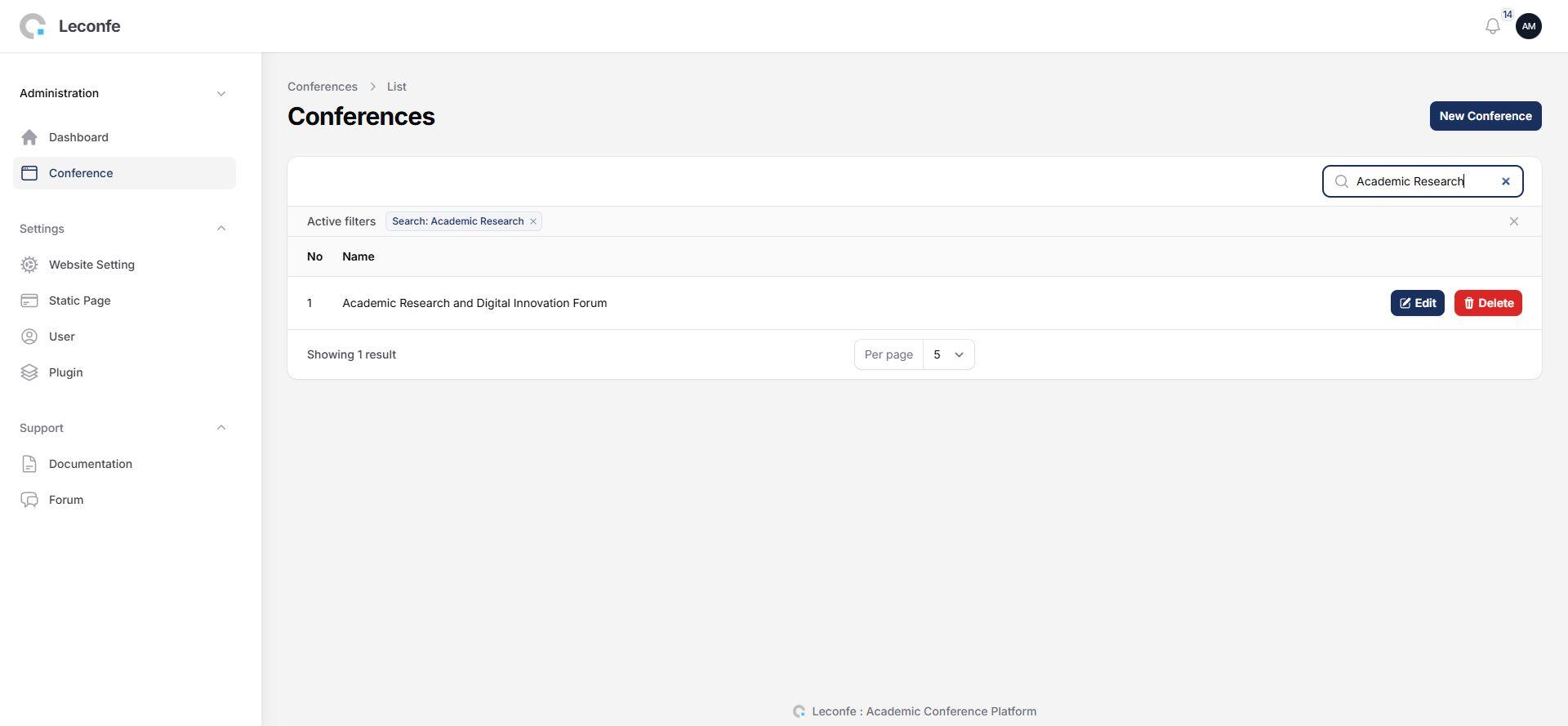
Open Conference in the Administration panel to create and manage conference series. This menu requires the Administration:view permission.
Create a Conference
- Open Administration > Conference.
- Select Create.
- Enter the conference Name.
- Enter a unique Path. The path becomes part of the conference URL and may contain letters, numbers, dashes, and underscores.
- Save the record, then open the conference to continue its configuration.
Choose the path carefully: changing it later also changes the public conference URL. Deleting a conference can affect scheduled events and related records, so verify dependencies and create a backup before deletion.
Configure Website Settings
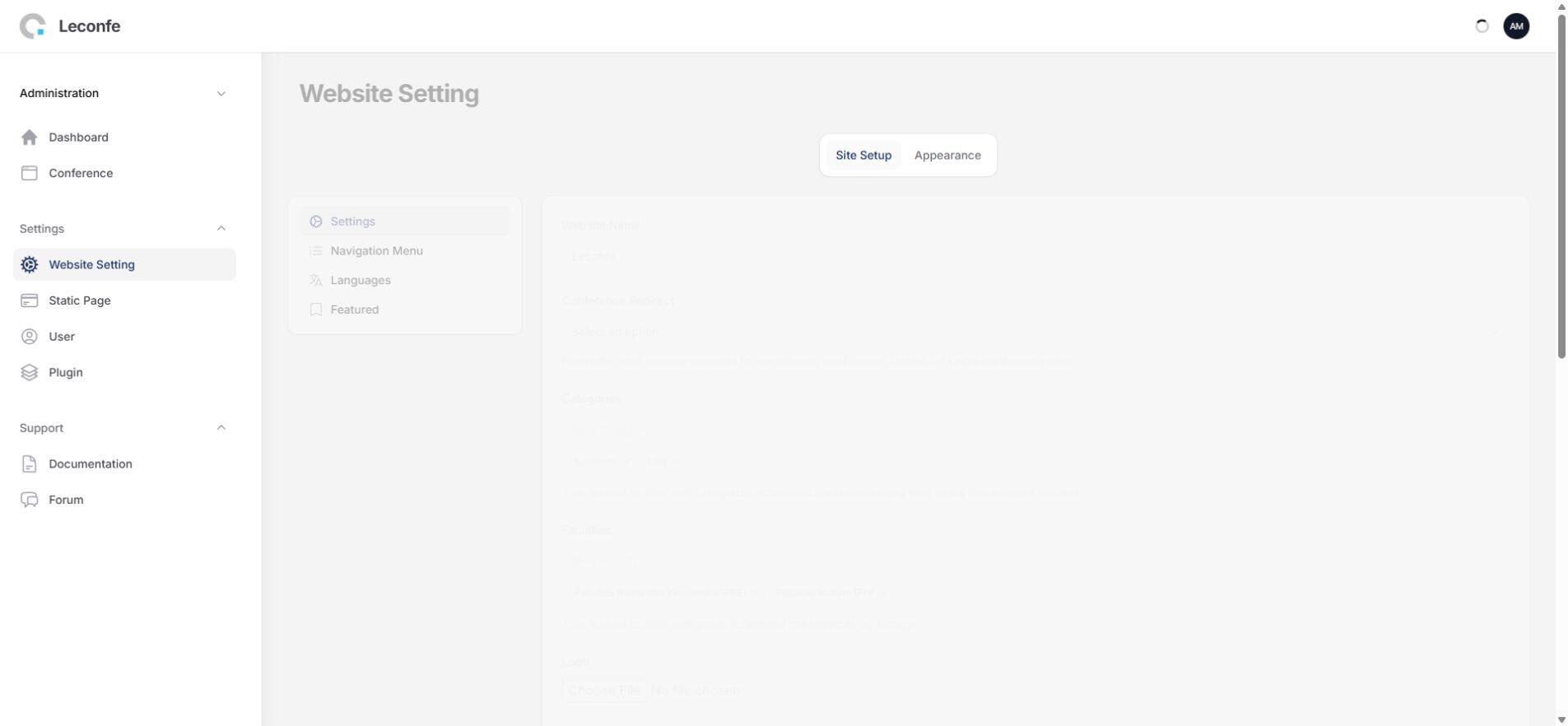
Open Website Settings from the Administration panel. Access is controlled by permission to update the current site. In Leconfe 1.5, the page is divided into Site Setup and Appearance.
Site Setup: Settings
The Settings section controls the main identity and publishing information for the website:
- Website Name: the required name displayed for the Leconfe installation.
- Conference Redirect: optionally redirects the main website to a selected conference.
- Categories: creates reusable categories for scheduled conferences.
- Faculties: creates reusable faculty or organizational classifications for scheduled conferences. This setting is available in Leconfe 1.5.
- Logo and Favicon: upload the visual identity shown on the website and browser tab.
- Description: provides a short description of the website.
- Publishing Details: records the country, required publisher name, and publisher URL.
- About Site: adds information about the installation or organization.
- Page Footer: controls text displayed in the website footer.
Site Setup: Navigation Menu
Use Navigation Menu to organize links shown in the global website navigation. After saving, check the public website on both desktop and mobile layouts. Avoid adding too many top-level items, and confirm that every destination is public and working.
Site Setup: Languages
Select the languages that visitors can use and choose one default language. Both the enabled-language selection and the default language are required. Confirm that the default language is also included in the enabled languages before saving.
Site Setup: Featured
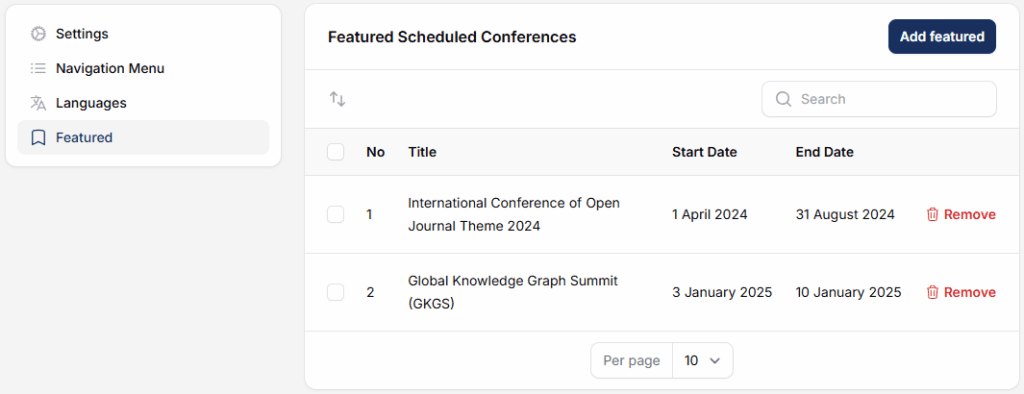
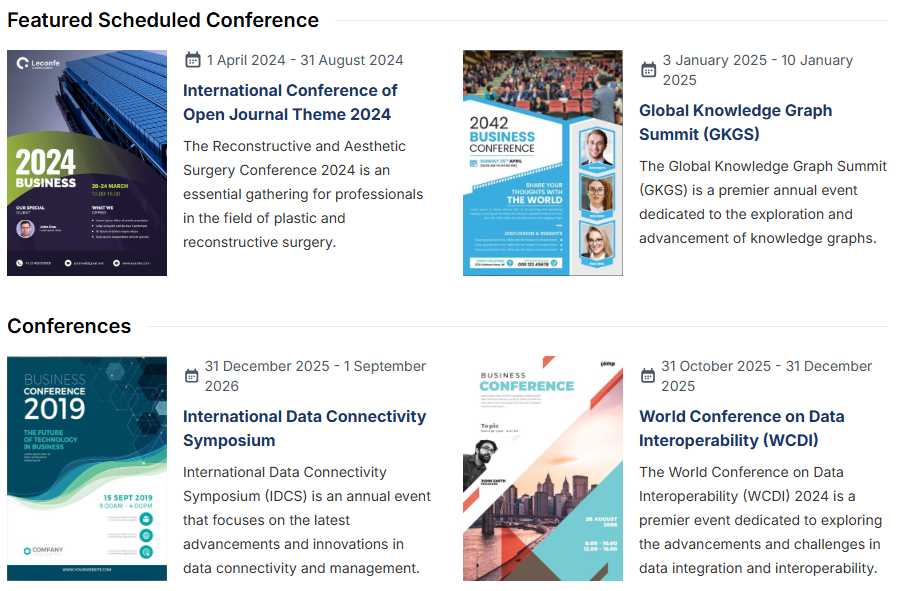
Use Featured to highlight scheduled conferences on the main website. You can add an event, reorder featured entries, or remove one or several entries. The list shows each event title and its start and end dates.
Appearance: Sidebar
Use Appearance > Sidebar to activate, deactivate, and reorder the items displayed in the website sidebar. Review the public website after saving to make sure the most important content appears first and that no duplicate or empty section is displayed.
Manage Plugins
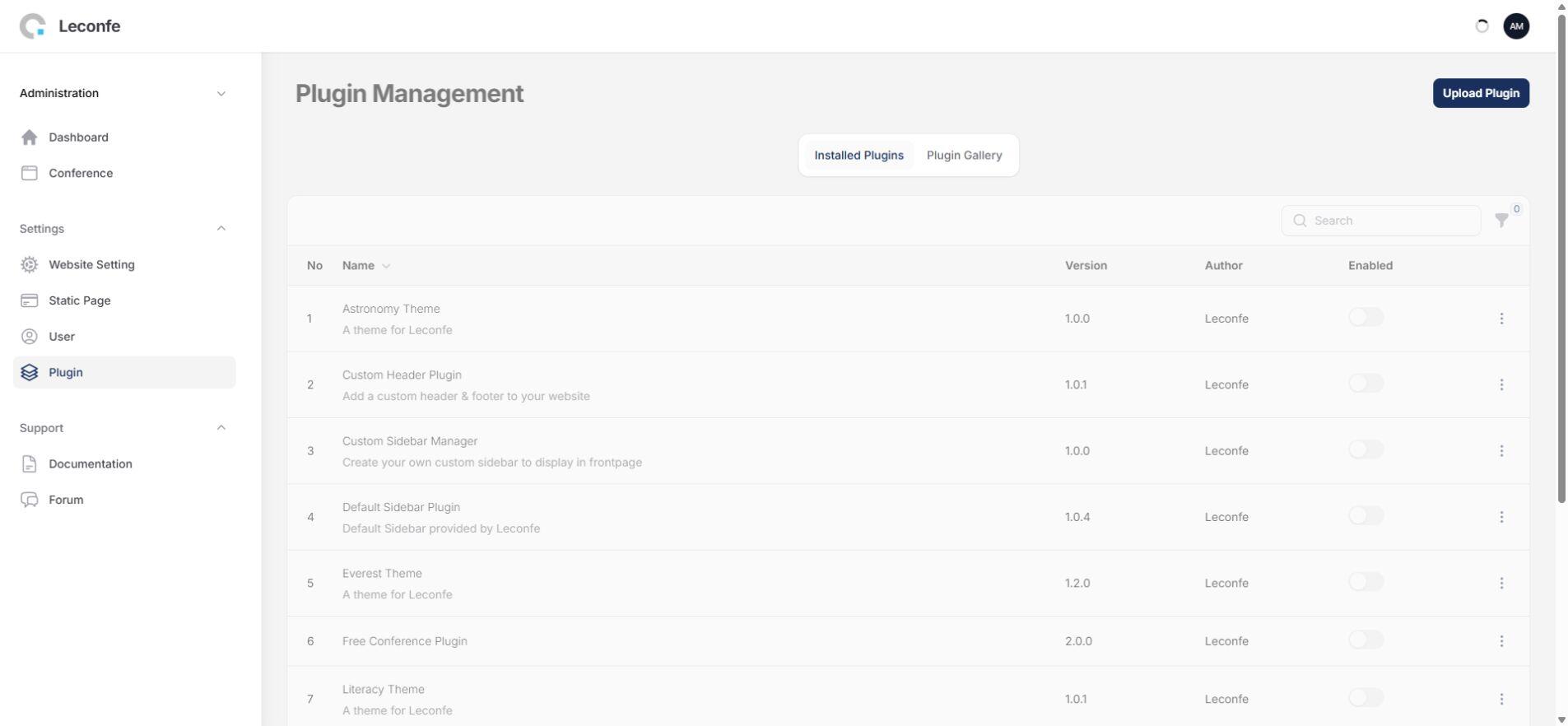
Open Plugin to manage extensions installed for the whole Leconfe installation. Available actions depend on your plugin permissions. Leconfe 1.5 separates plugin management into two tabs:
- Installed Plugins: view installed plugins, filter by enabled status, activate or deactivate a plugin, open its page when available, or uninstall it when permitted.
- Plugin Gallery: browse plugins that are available for installation.
Upload a Plugin
- Create a full backup and confirm that the plugin supports your Leconfe version.
- Open the Plugin page and select Upload Plugin.
- Select the trusted plugin package in ZIP format.
- Install the plugin and read the success or failure notification.
- Enable the plugin only after installation succeeds, then test the affected workflow.
Security note: Install plugins only from sources you trust. A plugin runs code inside your Leconfe installation and can affect security, data, performance, and upgrade compatibility. Deactivating a plugin does not necessarily remove its stored data; review plugin-specific instructions before uninstalling it.
Manage Static Pages
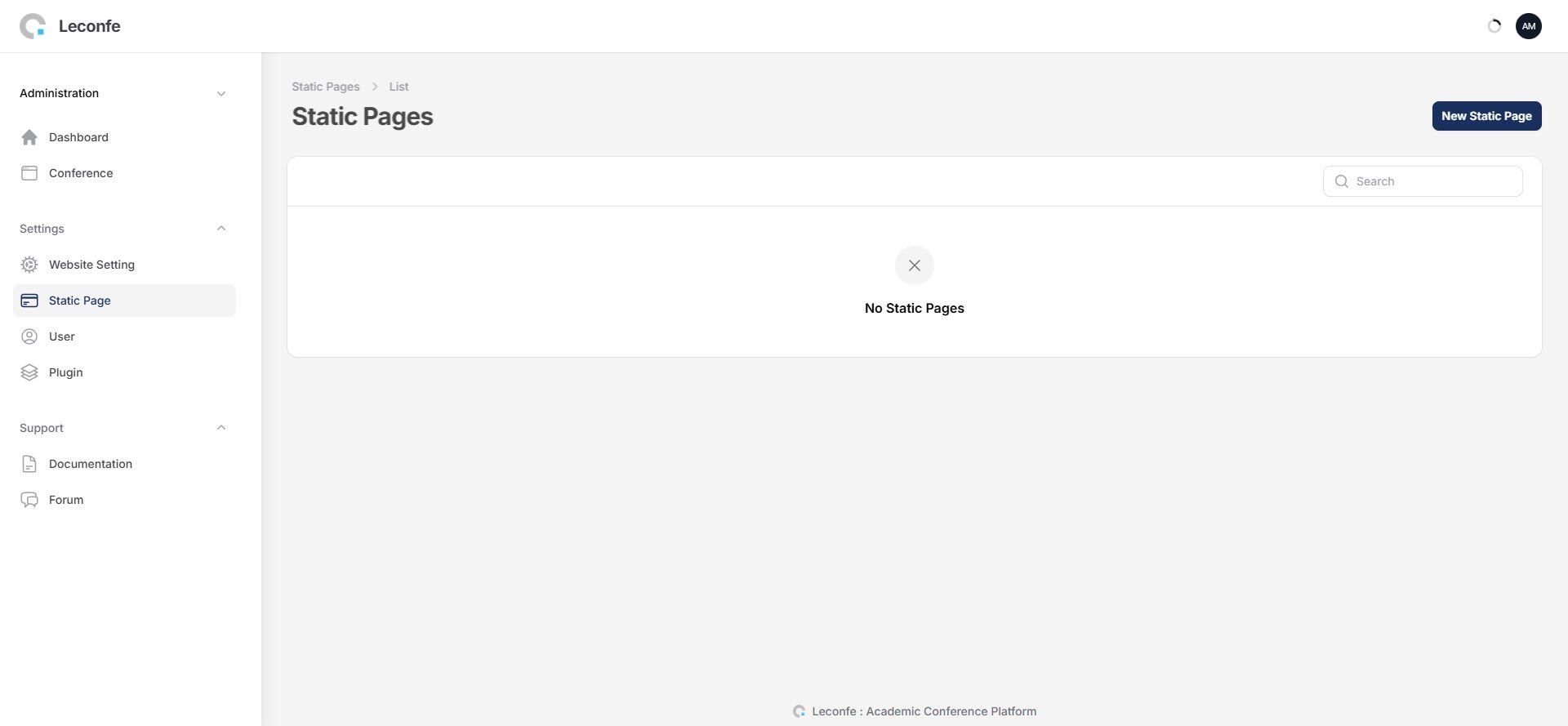
In Leconfe 1.5, Static Page is a core resource rather than a separate Static Pages plugin. In the Administration panel it is used for installation-wide pages. Similar static-page resources may also be available inside conference and scheduled-conference panels, depending on context and permissions.
Create a Static Page
- Open Administration > Settings > Static Page.
- Select the action to create a new page.
- Enter a clear Title.
- Enter a unique Slug. Use letters, numbers, dashes, or underscores; the slug becomes part of the page URL.
- Add the complete page Content, including links and images when required.
- Save the page, use Preview, and check it on both desktop and mobile before linking it from navigation.
Before deleting a static page, remove or update navigation links that point to it. Reusing the same slug in the wrong panel can also confuse users, so confirm whether the page belongs to the whole website, a conference series, or a scheduled conference.
Check System Information
Open System Information from the dashboard to view the current Leconfe version and installed-version history. Access requires permission to update the site. When requesting support, include the exact version, the affected panel, the action performed, the visible error, and relevant server log details without exposing passwords, secret keys, or personal data.
Use My Scheduled Conferences
When a user without full administration access opens the Administration dashboard, Leconfe can display My Scheduled Conferences. This portal combines roles assigned directly to a scheduled conference with roles inherited from its parent conference.
- Each entry identifies the parent conference and scheduled-conference title.
- The start and end dates help users confirm that they are opening the correct event.
- Role badges and event state explain what access is available.
- Open Scheduled Conference takes the user to that event’s panel.
If an expected scheduled conference is missing, ask an administrator or conference manager to verify your direct and inherited roles. Signing out and back in may be required after a role change.
Troubleshooting
An Administration Menu Is Missing
The account does not have the required permission, or you are working in a different panel. Confirm the current panel and ask a Site Administrator to review your role. Do not assign broader permissions than the user’s responsibilities require.
Saved Website Changes Are Not Visible
- Confirm that you saved the correct Website Settings tab.
- Reload the public page and check it in a private browser window.
- If the installation or interface was recently updated, use the relevant cache-clearing action once.
- If a proxy, CDN, or server cache is used, ask the server administrator to verify it.
Uploads or Plugin Assets Are Broken After Migration
Confirm the server’s public storage configuration and file permissions. After creating a backup, run Fix Broken Public Storage/Plugins once and test a known image and plugin asset. If the issue remains, review the server logs and deployment configuration.
A Plugin Upload Fails
Verify that the package is a valid ZIP file, the account has installation permission, the plugin supports the installed Leconfe version, and the server upload limits allow the file. Keep the plugin disabled until the installation problem is understood.
Final Checklist
- You made the change in the correct installation, conference, or scheduled-conference scope.
- The account has only the permissions required for its responsibilities.
- A current backup exists before plugin, upgrade, deletion, or maintenance work.
- Website identity, languages, navigation, featured events, and sidebar were checked on the public site.
- New conference paths and static-page slugs are unique and suitable for public URLs.
- Plugin changes were tested and did not break participant, submission, payment, or publication workflows.
- Maintenance actions were run only when necessary and their results were verified.
With these checks complete, the Leconfe Administration panel is ready for routine site-level management. Continue configuration in the relevant Conference or Scheduled Conference panel when the setting belongs to a specific event.


