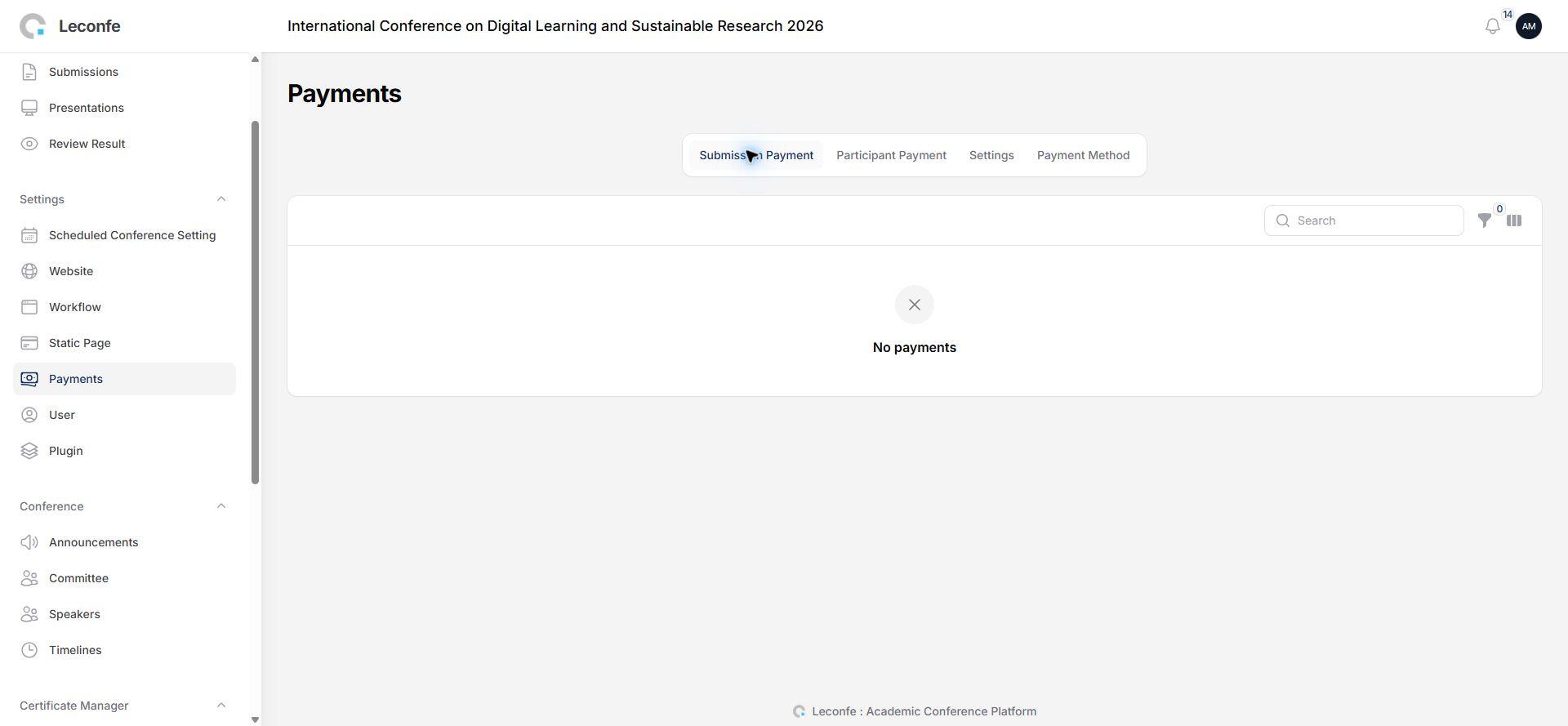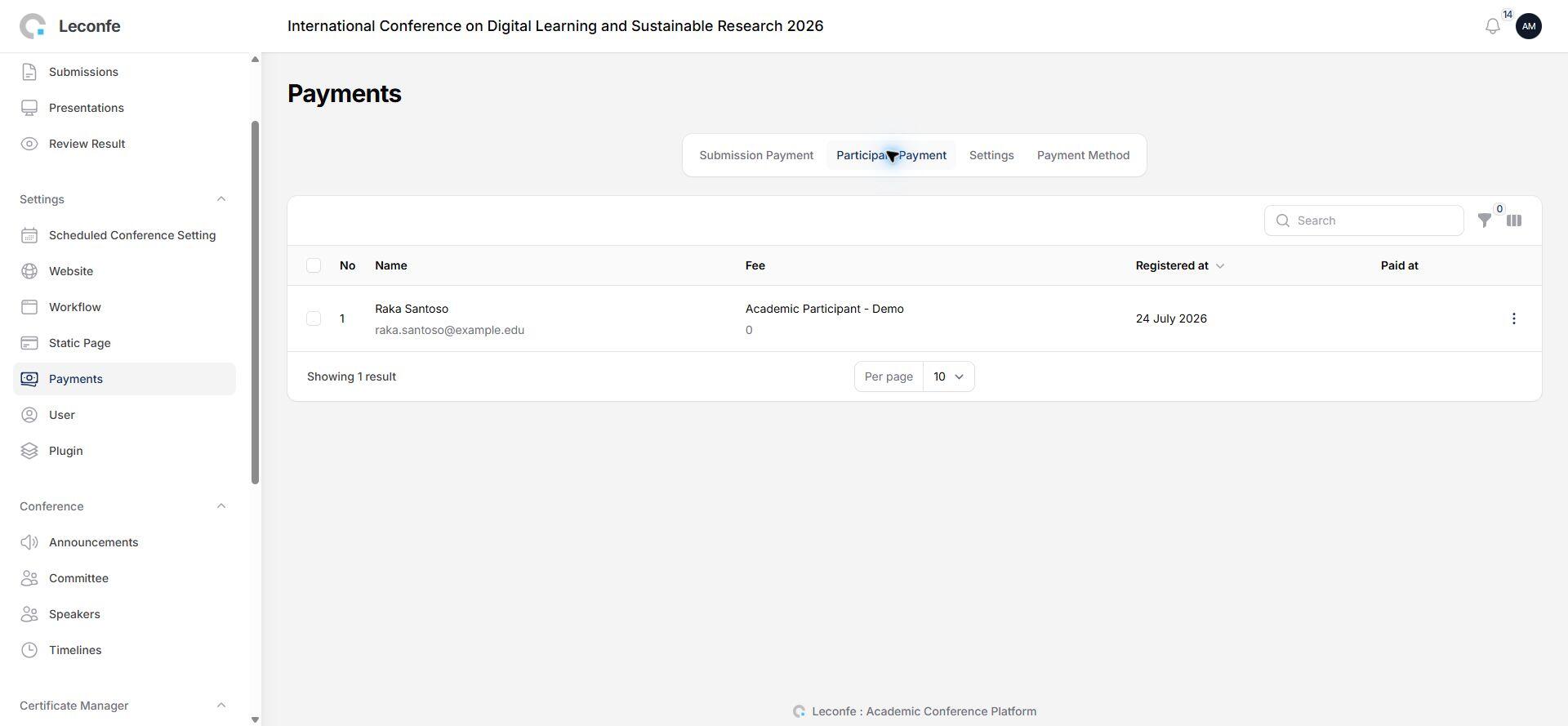
Leconfe provides a complete payment system for managing conference fees. You can collect submission fees, participant registration fees, and customize invoices and receipts. The payment settings are flexible and support add-on items, custom form fields, and payment time windows.
Payment Settings Overview
To access the payment settings, go to Scheduled Conference > Settings > Payment in the sidebar. The payment page has several sections that let you control every aspect of conference payments.
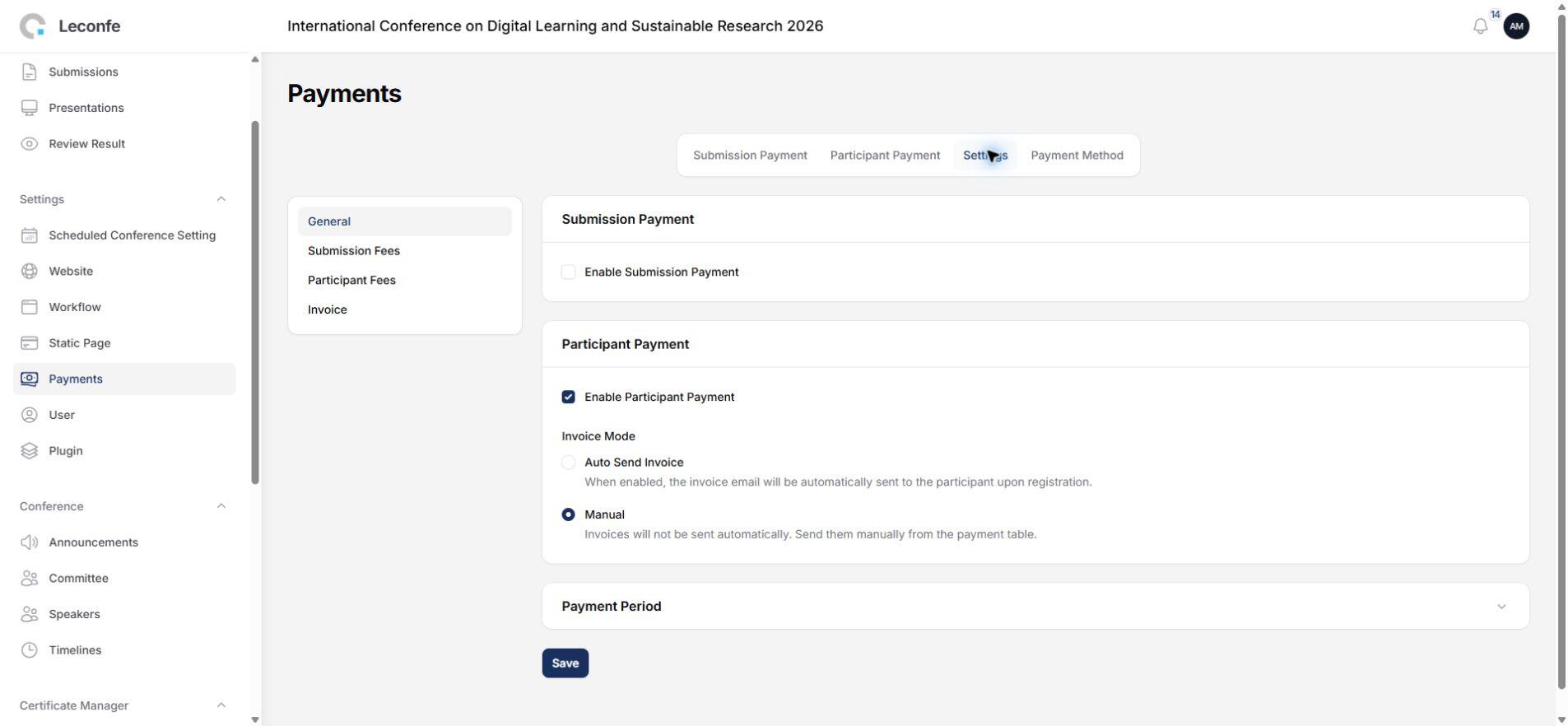
From this page, you can enable or disable submission payments and participant payments, configure invoices and receipts, set up payment fees, and manage add-on items and custom form fields.
Submission Payment
Submission payment lets you charge authors a fee when they submit their paper. You can turn it on or off with the Submission Payment toggle.
Auto-Send Invoice — When enabled, an invoice email is sent automatically to the author as soon as their submission reaches the billing stage. When disabled, you must send invoices manually from the Payments menu.
Billing Stage — This sets when the payment becomes available for a submission. You can choose from:
- Submission — Payment is required immediately when the author submits
- Peer Review — Payment is required after the submission passes initial review
- Presentation — Payment is required at the presentation stage
- Editing — Payment is required at the editing stage
Choose the stage that best fits your conference workflow.
Participant Payment
Participant payment lets you charge attendees a fee when they register for the conference. Turn it on or off with the Participant Payment toggle. When participant payment is enabled, the registration form will include payment options.
Auto-Send Invoice — When enabled, an invoice email is sent automatically after a participant registers. When disabled, you must send invoices manually.
Payment Period
You can set a start date and an end date for the payment window. Payments are only accepted during this period. Outside these dates, users will not be able to make payments.
If you leave the dates empty, payments are accepted at any time (as long as the payment feature is enabled).
Invoice Settings
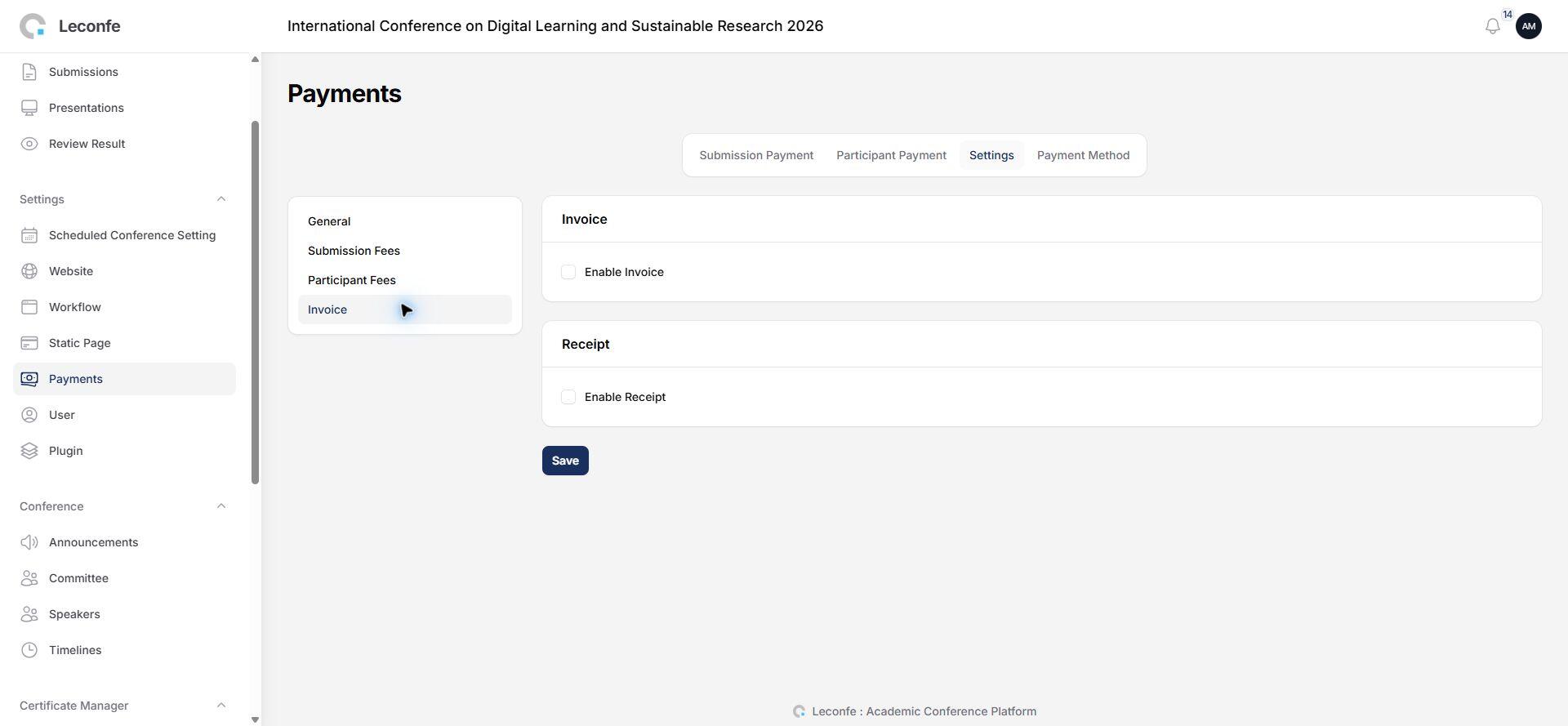
Leconfe can automatically generate invoices and receipts for every payment. Here is a preview of a generated invoice:
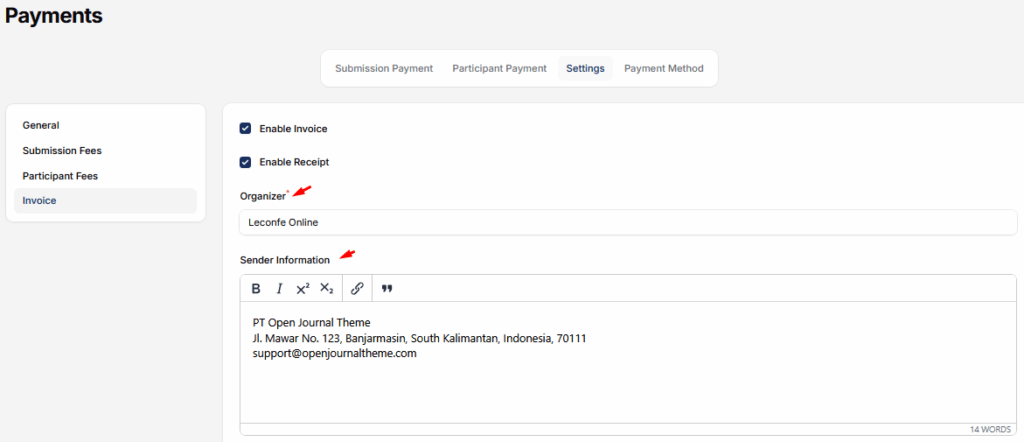
Enable Invoice and Receipt
Use the Invoice toggle to enable or disable automatic invoice generation. The Receipt toggle controls receipt generation. Note that receipts are only generated when invoices are also enabled.
Sender Information
Fill in your organization details in the sender fields. This information appears at the top of every invoice and receipt. You can include:
- Organization name and address
- Contact information
- Additional notes or terms
Invoice Number Format
Each invoice and receipt gets a sequential number automatically. You can customize the format by adding a prefix, setting the starting number, and adding a suffix.
For example, with prefix INV-, number 1, and suffix /2026, the first invoice number would be INV-001/2026.

The same prefix/number/suffix settings are available separately for receipts.
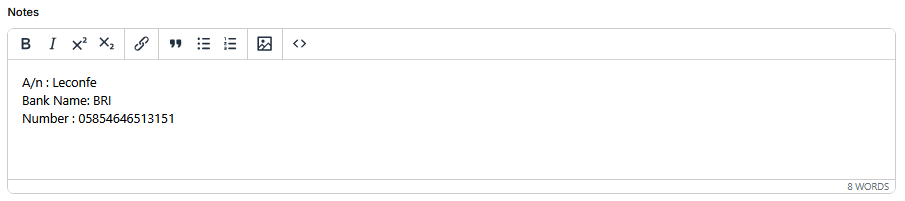
Footer notes and payment instructions can also be added. These appear at the bottom of each invoice.
Setting Up Payment Fees
Payment fees are the actual charges you create for your conference. Each fee has these properties:
- Name — A descriptive name for the fee (e.g., “Regular Author Fee”, “Student Participant Fee”)
- Type — Either Submission Fee (charged to authors) or Participant Fee (charged to registered participants)
- Amount — The fee amount in your chosen currency
- Currency — The currency for this fee
- Active — Toggle to enable or disable this fee
- Public — When enabled, the fee is visible to users. When disabled, it is hidden from the frontend but can still be assigned manually
- Limit — Optional maximum number of times this fee can be used. Leave empty for unlimited
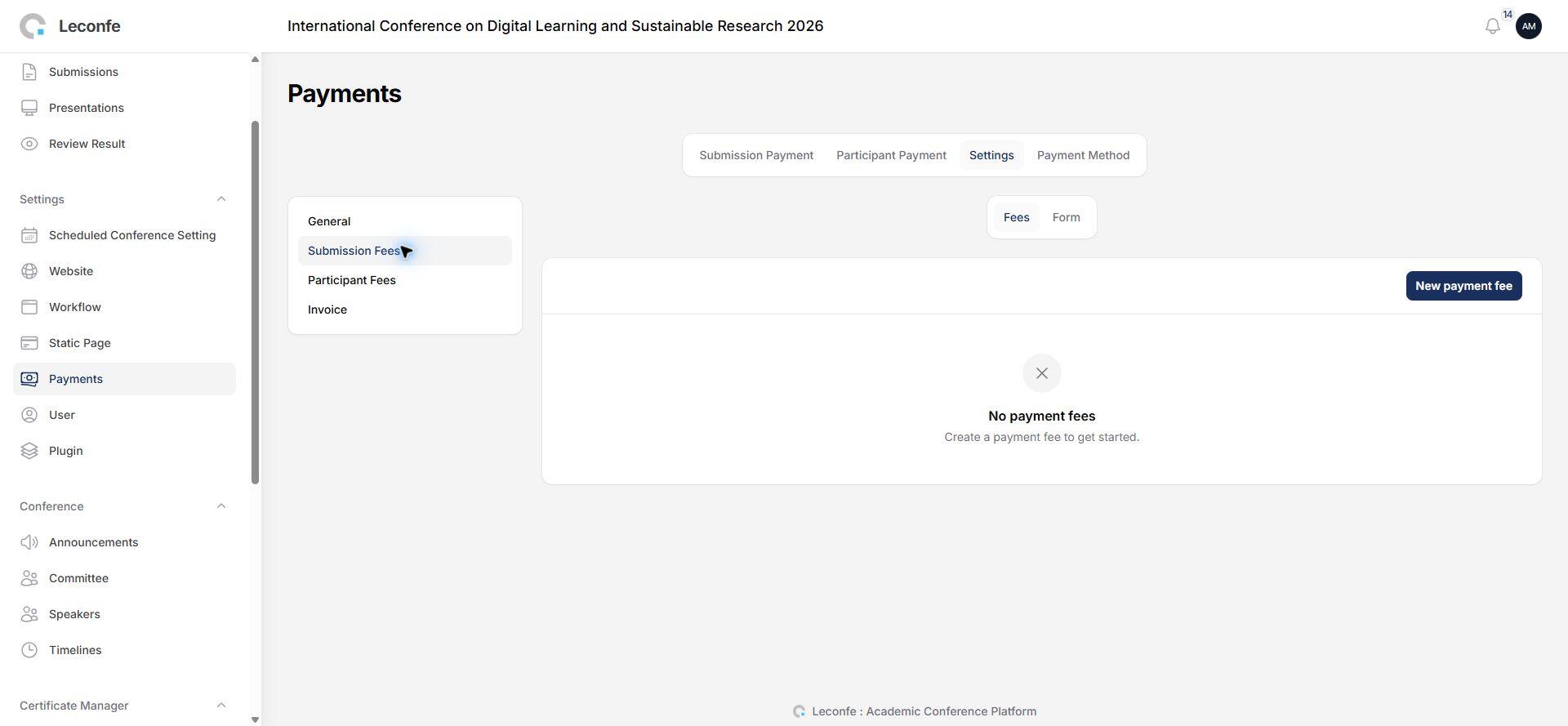
You can create multiple fees for submissions and multiple fees for participants. When a user reaches the payment step, they can choose from the available fees.
Add-on Items
Each payment fee can have optional add-on items — extra charges that users can select during payment. For example:
- Extra Pages — $5.00 each. Authors can add more pages beyond the included limit.
- Color Printing — $10.00 each. For printed proceedings with color figures.
- Certificate — $15.00 each. Additional presentation certificates.
Each add-on item has a name, optional description, and per-unit amount. During payment, users can specify how many of each add-on they want (quantity selector). The total cost is calculated automatically.
To set up add-on items, open a payment fee and look for the Additional Items section. You can add as many add-on items as needed.
Payment Form Items
You can add custom form fields to the payment form to collect additional information from payers. This is useful for gathering details like tax ID numbers, institutional affiliation, dietary preferences, or special requirements.
Available field types:
- Single text box — A short text input
- Extended text box — A larger text area for longer responses
- Checkboxes — Users can select one or more options
- Radio button — Users can select only one option
- Drop down box — A searchable dropdown menu
- Upload File — Users can upload a file (e.g., proof of student status)
Each field can be marked as required. You can create different form fields for submission payments and participant payments. The form fields appear during the payment checkout process.
Managing Payments
Once payments are configured, you can view and manage them under Scheduled Conference > Payments. The payments page lists all submission payments and participant payments. You can:
- Verify payments and mark them as paid
- Edit payment details
- View invoices and receipts
- Send payment reminders