
Applies to: Leconfe 1.5.0
This guide explains the complete Reviewer workflow in Leconfe: opening an invitation, checking deadlines, accepting or declining the request, reading the assigned files, completing the review form, saving a draft, submitting the final review, and responding to a new review round.
Important: Leconfe 1.5.0-beta.3 is a pre-release. Labels and layouts may still change before the final 1.5.0 release. The screenshots retained on this page were captured from an earlier interface, but their captions connect them to the current workflow.
Before You Accept a Review
Before accepting, confirm that you can perform an independent, confidential, and timely evaluation. Check the following:
- You are signed in with the same email address that received the invitation.
- The invitation belongs to the correct Scheduled Conference and submission.
- The paper is within your area of expertise.
- You can respond before the Response Due Date.
- You can complete the review before the Review Due Date.
- You have no competing interest that could affect your judgment.
- You can protect the confidentiality of the manuscript and its supporting files.
The Response Due Date is the deadline for accepting or declining the invitation. The Review Due Date is the deadline for submitting the completed review. The organizer may use different labels, but the invitation page is the source of truth for the current assignment.
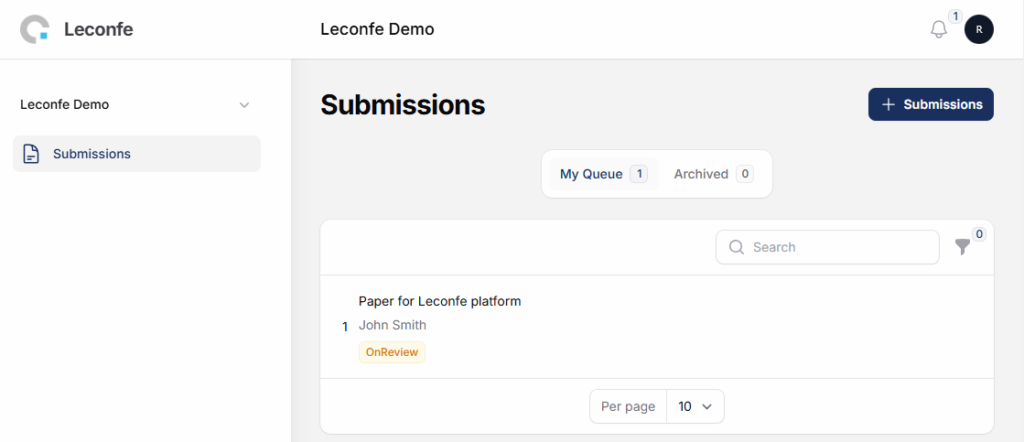
Open the Review Assignment
- Sign in to the conference website.
- Confirm that you opened the correct Scheduled Conference.
- Open Submissions.
- Select My Queue.
- Open the assigned submission or its review action.
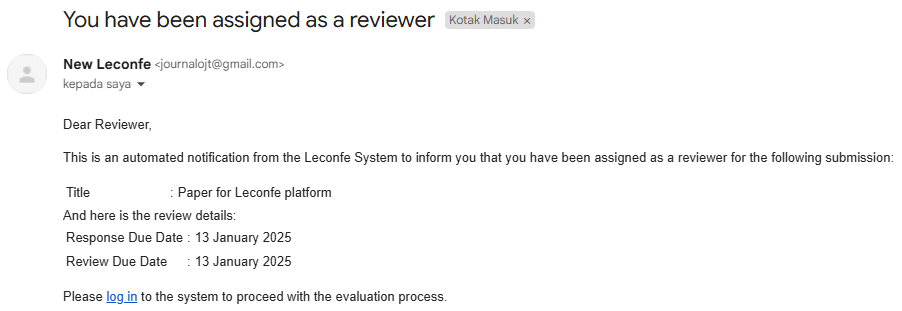
Email is a notification channel. Always use the in-app assignment to verify whether the invitation is active, which files are assigned, and which deadlines apply.
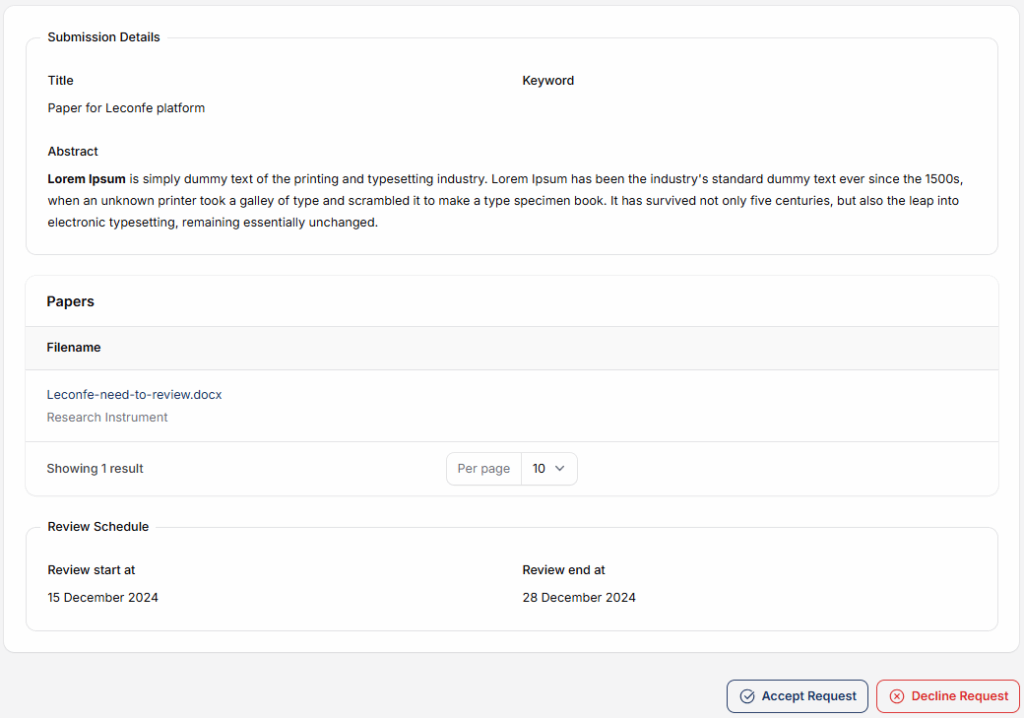
Accept or Decline the Request
The invitation page displays the submission information that the organizer has made available, the assigned paper files, the review schedule, and actions for responding.
- Read the title, abstract, assigned files, and deadlines.
- Select Accept Request if you can complete the review.
- Select Decline Request promptly if you cannot participate or have a competing interest.
Opening the invitation does not by itself accept the assignment. If the invitation has expired, was canceled, or no longer belongs to the active review round, contact the organizer instead of trying to use an older form.
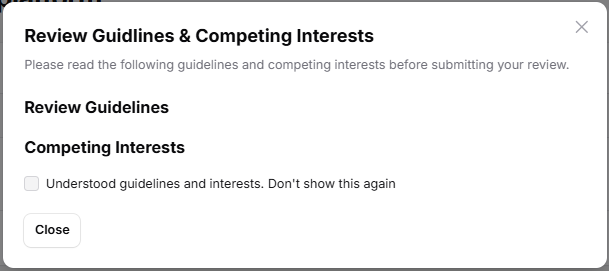
Read the Guidelines and Declare Competing Interests
After accepting, Leconfe can show Review Guidelines & Competing Interests. The organizer may provide:
- Review Guidelines: criteria, expectations, and conference-specific instructions.
- Competing Interests: a statement explaining conflicts that must be disclosed or avoided.
The View Guidelines action appears only when the organizer has supplied this information. Selecting Don’t show this again dismisses the automatic prompt; it does not remove the guidance. You can reopen it from View Guidelines.
If you discover a competing interest after accepting, stop the review and contact the editor or conference organizer.
Understand Review Mode and Confidentiality
The organizer controls the review mode for an assignment. Depending on the conference, the workflow may be open, single-blind, or double-blind.
- Do not share the manuscript, assigned files, or unpublished findings outside the authorized review process.
- Do not place your name, affiliation, signature, or other identifying information in author-visible comments when anonymity is required.
- Remove identifying document metadata from an uploaded review file when anonymity is required.
- Do not contact the author directly unless the conference explicitly instructs you to do so.
If the interface reveals information that seems inconsistent with the announced review mode, pause and inform the organizer.
Review the Assigned Files
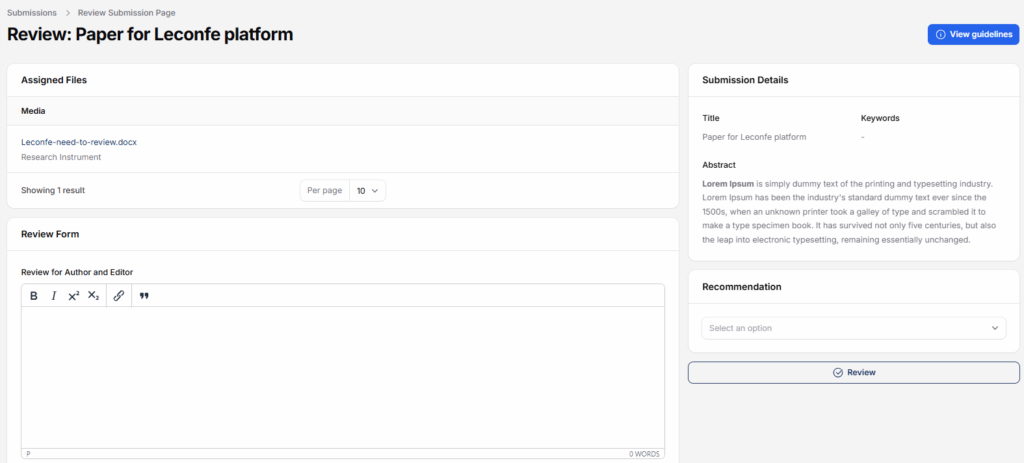
Use the files listed under Assigned Files. A submission can contain several files, but only files assigned to your current review should be used for the evaluation.
- Download or open every assigned file.
- Confirm that each file opens correctly and belongs to the expected submission.
- Evaluate the work using the organizer’s guidelines and the questions in the review form.
- Return to the same active assignment to enter your review.
If a file is missing, corrupted, or clearly incorrect, contact the editor through an available discussion or the organizer’s official support channel. Do not request the manuscript through an insecure or unauthorised channel.
Complete the Review Form
The exact review form is configured by the conference organizer. It can contain the following field types:
- Text: a short answer such as a sentence or a few words.
- Textarea: a longer explanation or detailed comment.
- Checkbox: select one or more applicable choices.
- Radio: select one choice from the available options.
- Select/Dropdown: choose one option from a list; it can also be used for scoring.
- Upload: attach a supporting review file when enabled.
Complete every required question. Required fields, available recommendations, and accepted upload formats can differ between conferences.
Understand Weighted Scoring
Some conferences use weighted scoring in Select or Dropdown questions. Each answer option has a configured value and each question has a configured weight. Leconfe calculates the total score automatically.
- Select the answer that best matches the criterion.
- Do not try to adjust answers merely to produce a particular total.
- Use the organizer’s scoring labels and review guidelines consistently.
- If no score is shown, the organizer may be using a non-scoring review form.
Administrators who need to configure scoring can see How to Set Up Weighted Scoring in the Review Form.
Write Feedback for the Correct Audience
Leconfe can provide two feedback destinations. Check the label before entering sensitive information.
- For Author & Editor: constructive comments that the editor can share with the author. Explain the strengths, concerns, and actionable improvements clearly and professionally.
- For Editor Only: confidential comments for the editorial team. Use this for sensitive concerns, suspected ethical issues, or information that should not be sent directly to the author.
For Editor Only is hidden from the author, but it remains part of the editorial record. Do not include unnecessary personal or sensitive information.
Upload a Supporting Review File
An Upload field appears only when the organizer has configured one. If you attach an annotated manuscript or a separate review document:
- Use an accepted file format and a clear filename.
- Remove comments or document properties that reveal your identity when anonymity is required.
- Do not upload unrelated files or files containing third-party confidential information.
- Confirm that the upload is complete before saving or submitting.
Save a Draft or Submit the Final Review
Save for Later
Use Save for Later when the review is not ready for final submission.
- Your current answers, comments, and uploaded files are saved as a draft.
- You can leave the page and return before the review deadline.
- The assignment is not complete until the final review is submitted.
- Reopen the same active assignment and verify the saved content before continuing.
Submit the Final Review
- Check every required answer and uploaded file.
- Verify that comments are in the correct Author & Editor or Editor Only field.
- Select the recommendation requested by the organizer.
- Use the final Submit Review or equivalent review action.
- Wait for the success notification before leaving the page.
After final submission, the review can no longer be edited through the normal reviewer form. If you notice a serious error, contact the editor and identify the submission without sending confidential review content through an insecure channel.

What Happens After Submission
The editor reviews the submitted evaluations and decides the next action for the paper. Depending on the workflow, the editor may accept or decline the submission, ask the author for changes, or start another review round.
Your recommendation supports the editorial decision; it is not necessarily the final decision. Wait for a new in-app assignment or official notification if the editor needs another evaluation.
Review Rounds in Leconfe 1.5
Leconfe 1.5 introduces round-aware peer review. Each invitation and review belongs to a specific review round.
- Round 1 is normally created when the submission enters peer review.
- A new round can be opened after an author revision or another editorial action.
- Assigned files, reviewers, revisions, and discussions can be associated with a particular round.
- When a new round starts, an unfinished invitation or review from an older round can be canceled.
- A completed review from an earlier round remains part of the editorial history.
If you are invited again, open Submissions > My Queue and use the newest active assignment. Review only the files assigned to that round. Do not reuse an old invitation page or assume that a previous draft has carried forward.
Use Discussions When Available
A reviewer can participate in a submission discussion when the organizer includes the reviewer. Discussions may be limited to a workflow stage or review round.
- Use the discussion to ask an authorized editor for clarification or report a file problem.
- Check who participates before posting; do not assume every topic is visible to the author.
- Keep messages professional and relevant to the assigned review.
- A closed discussion no longer accepts new messages.
Troubleshooting
The assignment is not visible
- Confirm that you signed in with the invited email address.
- Confirm the Scheduled Conference and open Submissions > My Queue.
- Ask the organizer whether the invitation is still active or was replaced by a newer round.
You cannot accept or submit
The response or review deadline may have passed, the assignment may have been canceled, or a newer review round may have started. Refresh My Queue and contact the organizer if no current action is available.
An assigned file cannot be opened
Refresh the assignment and try the file again. If it is still unavailable, report the exact filename to the editor or organizer. Do not ask the author to resend it directly.
Saved answers are missing
Confirm that you opened the same active review round and that the earlier Save for Later action completed successfully. A draft from a canceled or older round may no longer be the current assignment.
A comment is in the wrong feedback field
Move the comment before final submission. If the final review has already been submitted, contact the editor because normal reviewer editing is no longer available.
Final Reviewer Checklist
Before submitting the final review, confirm that:
- You are working in the newest active review round.
- You reviewed every assigned file.
- You followed the review guidelines, review mode, and competing-interests policy.
- Every required question is complete.
- Author-visible and editor-only comments are in the correct fields.
- Uploaded files do not reveal your identity when anonymity is required.
- The selected recommendation matches your written evaluation.
- You received the final success notification after submitting.


