
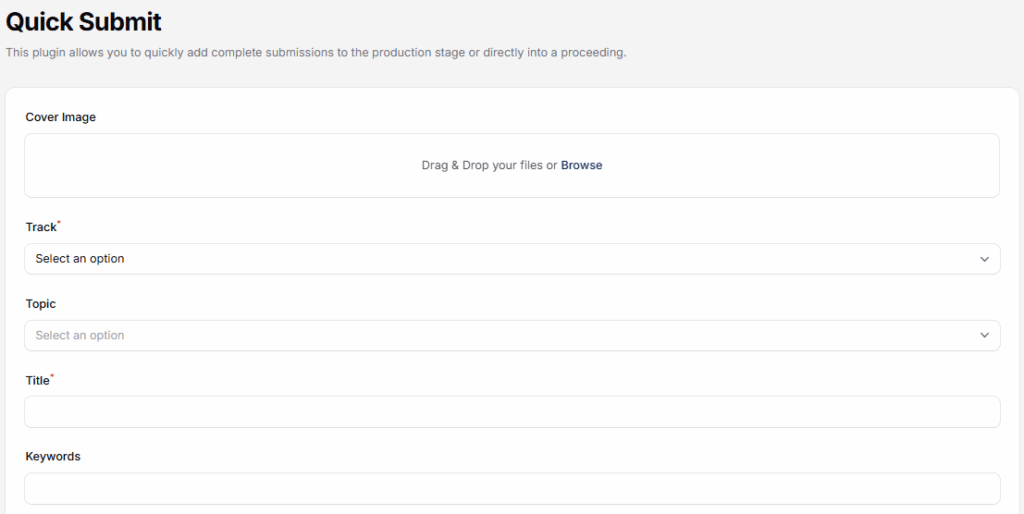
The Quick Submit Plugin in Leconfe is designed to simplify and accelerate the submission process by allowing administrators or organizers to submit papers or abstracts on behalf of authors. This plugin is especially useful for offline submissions, or cases where submission data is collected outside the Leconfe system.
With Quick Submit, submissions can be added directly to the system without requiring the author to create an account or complete the standard submission steps.
When to Use Quick Submit
Use Quick Submit when:
- Authors submit papers offline (outside the Leconfe system) and you need to add them manually.
- You are importing many submissions at once from another system.
- An author cannot access the system but needs to submit their work.
- You want to quickly test a submission before opening the system to authors.
How to Install and Activate the Quick Submit Plugin
Log in to your Leconfe Dashboard.
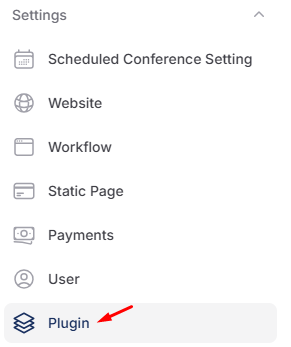
Navigate to Settings → Plugins (or Plugin Manager).
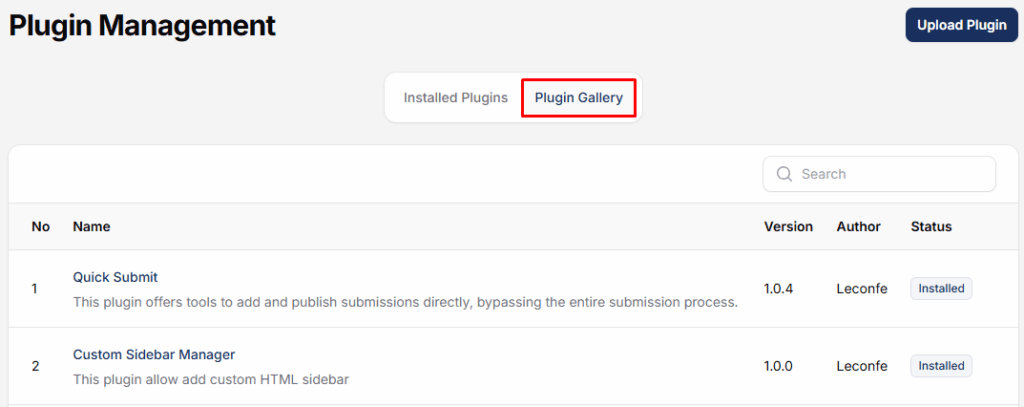
Locate Quick submit in the plugin list.

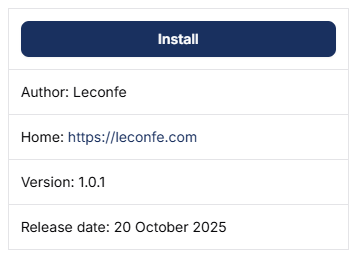
Click Install.
Wait until the installation process is completed successfully.
How to use the Quick Submit plugin
After installation, remain on the Plugins page.
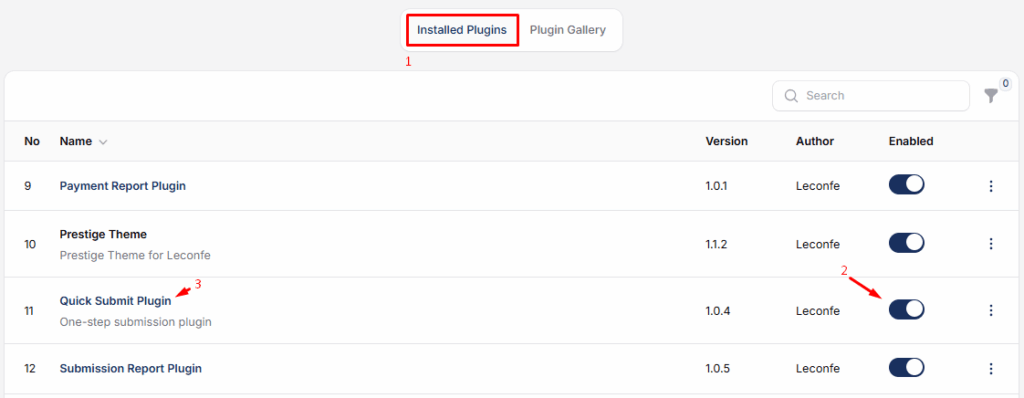
Find Quick Submit Plugin in the installed plugins list.
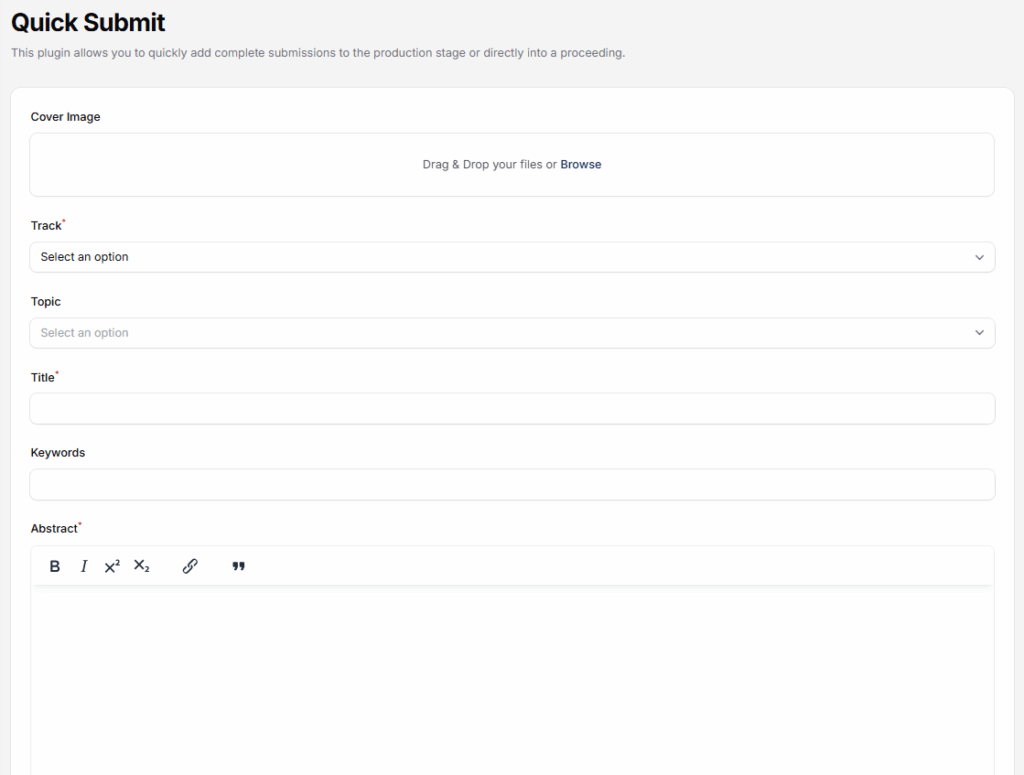
After the plugin is installed and activated, administrators can access the Quick Submit menu from the Leconfe dashboard. The admin simply fills in the required submission details—such as title, author information, topic, and files—
Available Fields
When you fill in the Quick Submit form, here is what each field means:
- Title — The name of the paper or abstract being submitted.
- Abstract — A short summary of the paper. This helps reviewers understand what the submission is about.
- Authors — The names of the people who wrote the paper. You can add more than one author.
- Keywords — Words or short phrases that describe the topic of the paper. These help organizers sort submissions by theme.
- Topic / Track — The category or theme the paper belongs to (for example, “Artificial Intelligence” or “Education”). Choose the one that fits best.
- Upload File — The paper document itself. You can upload the file directly from your computer.


