
This guide follows one paper through the complete Leconfe 1.5 workflow. It begins with the author’s submission, continues through editorial screening and peer-review rounds, and ends with Presentation, Editing, and the handoff to publication.
The screenshots are labeled by role. Menu names and available actions can vary according to the user’s permissions, the scheduled-conference configuration, enabled payments, and the paper’s current stage and status.
Before You Start
Make sure that:
- the author is registered in the correct scheduled conference;
- the submission period is open;
- required metadata, file types, topics, tracks, and additional fields are configured;
- editors and reviewers have the correct scheduled-conference roles;
- the review form and review method are ready;
- outgoing email has been tested;
- submission-payment settings are confirmed when fees are used; and
- the conference has decided whether accepted papers move through Presentation before Editing.
Workflow and Status Overview
A normal submission can follow this sequence:
- The author completes the submission wizard.
- The paper enters the editorial queue.
- An editor is assigned when necessary.
- The editor declines the submission, sends it for review, or skips review according to conference policy.
- If peer review is used, Leconfe creates the first review round and reviewers complete their assignments.
- The editor accepts, requests revision, declines, or starts another review round.
- An accepted paper moves to Presentation and then Editing.
- Publication staff complete the final metadata, proceeding assignment, and publication checks.
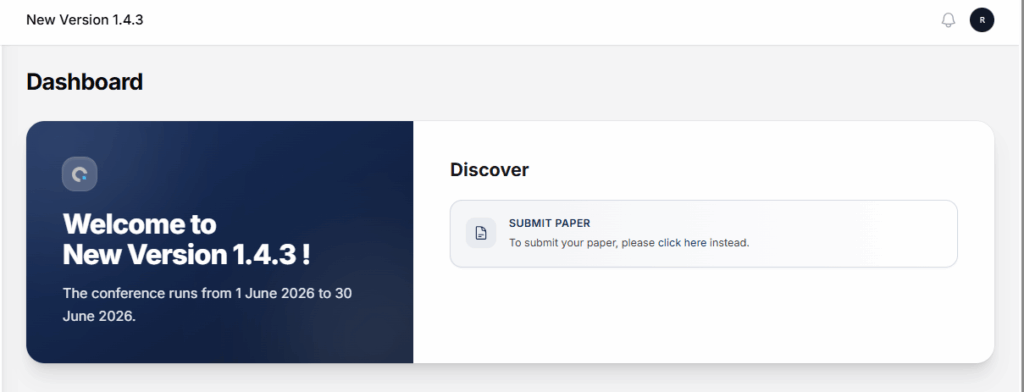
Common statuses include:
- Queued: submitted and waiting for editorial action.
- On Payment: a configured payment must be completed or handled before the workflow continues.
- On Review: the paper is in an active peer-review process.
- On Presentation: the paper has reached the presentation stage.
- Editing: the paper is being prepared for publication.
- Published or Scheduled: publication has been completed or scheduled.
- Declined, Payment Declined, or Withdrawn: the active workflow has ended through the corresponding outcome.
Always check both stage and status. A queue name is a navigation aid, not a complete description of what should happen next.
1. Author Creates and Submits a Paper
The Leconfe submission wizard normally contains four steps: Details, Upload Files, Contributors, and Review. Extra fields or payment choices can appear when the conference has configured them.
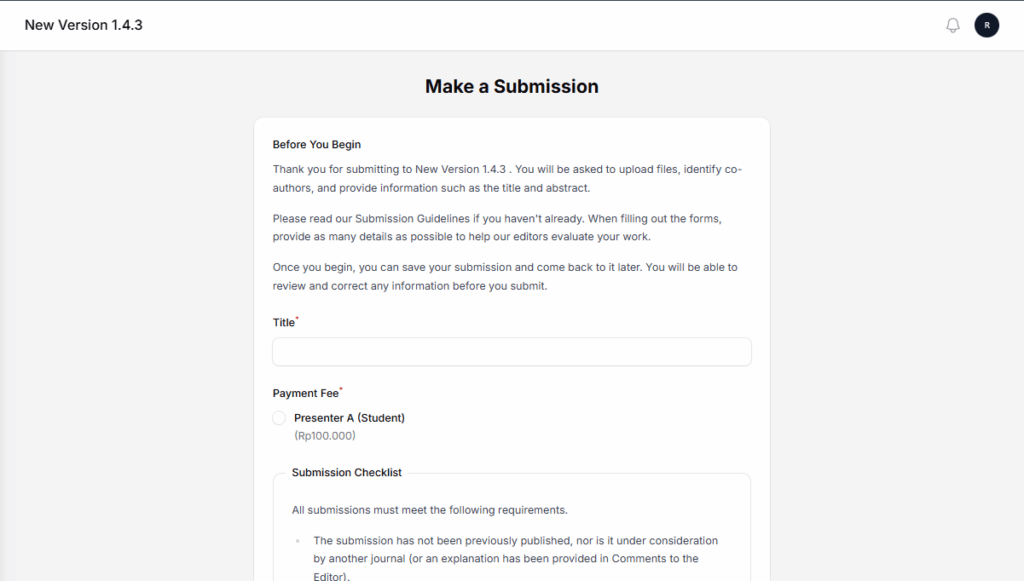
Complete the Details Step
Enter the title, abstract, keywords, topic, track, and other fields displayed by the conference. Use publication-ready spelling and add information in the requested language. Required fields must be complete before the author can continue.
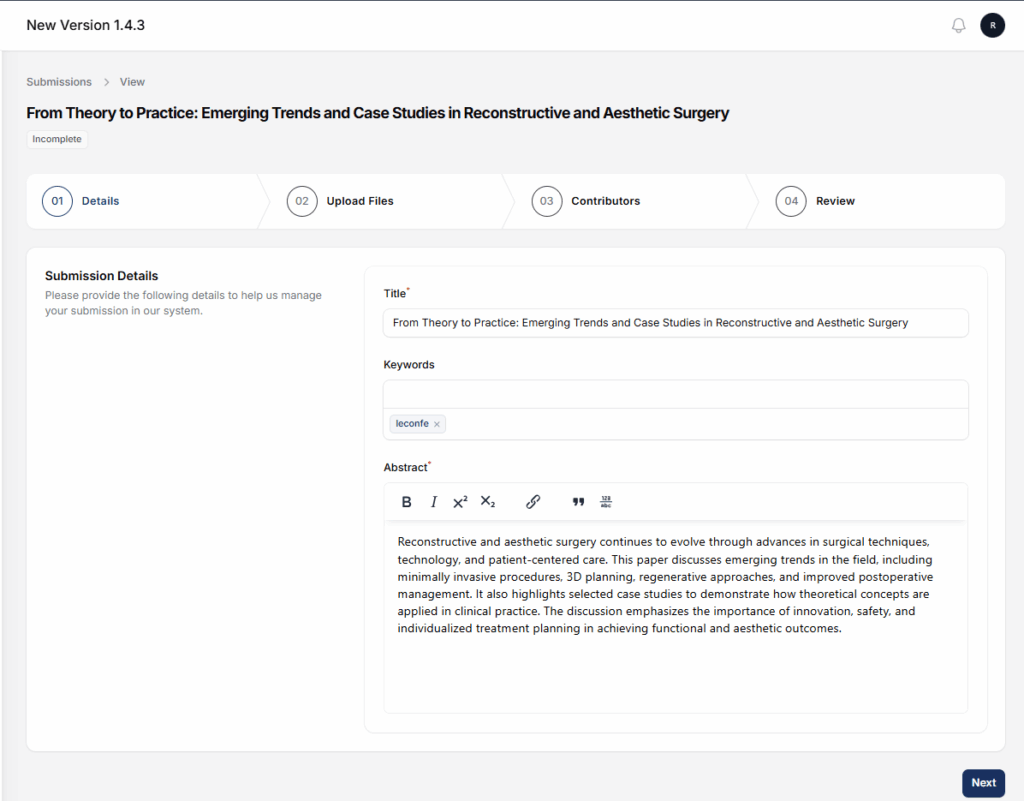
Upload the Required Files
Upload each file under the correct file type. Wait until the upload is complete before continuing. Follow the conference’s naming, format, size, and anonymization requirements.
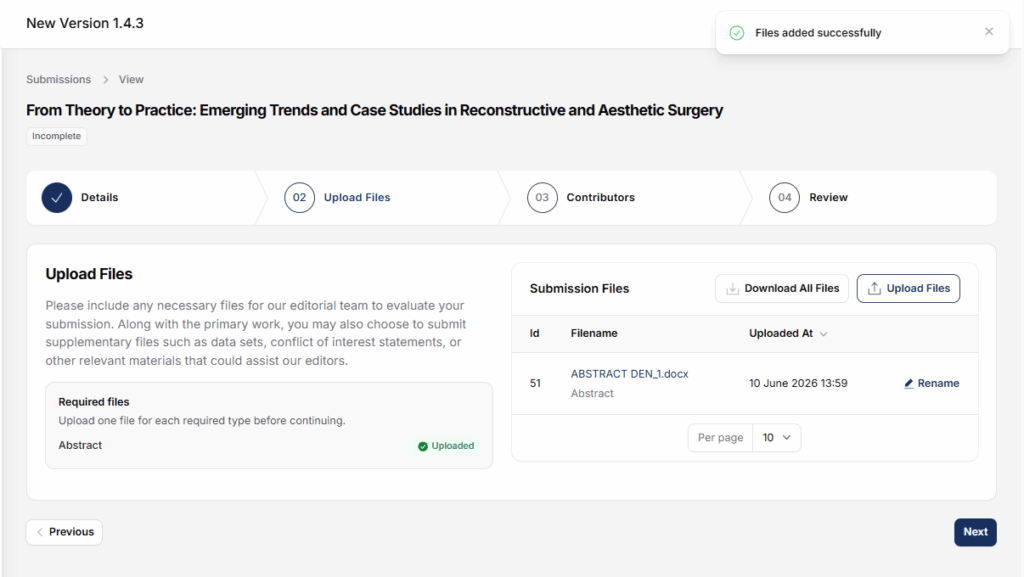
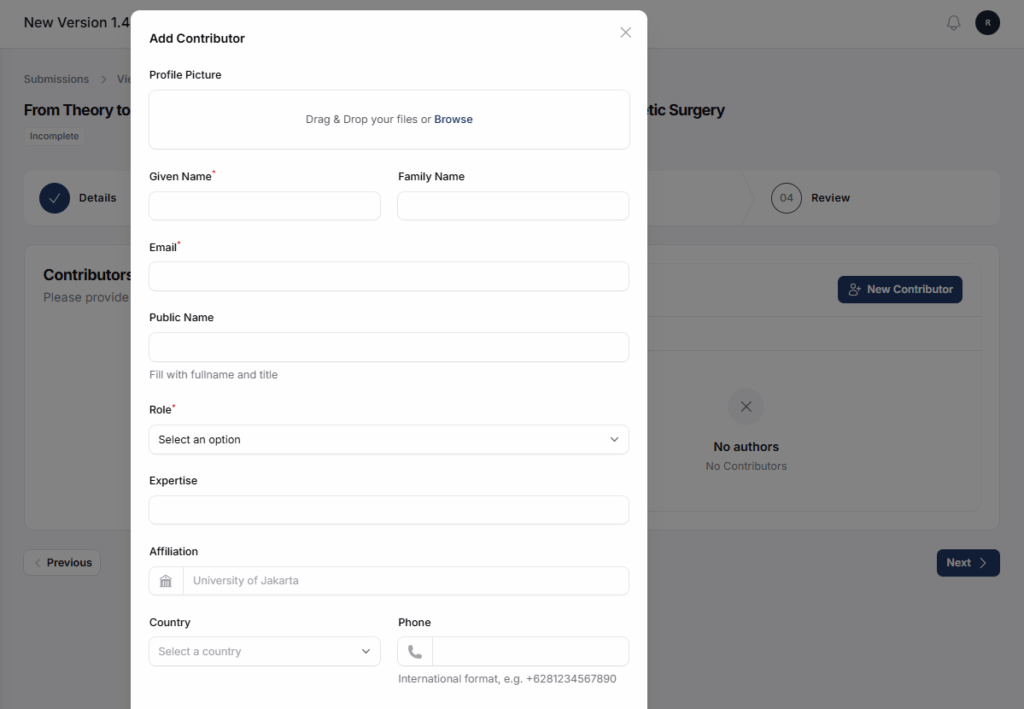
Add All Contributors
Add every author and co-author, then confirm the contributor order, email addresses, affiliations, and corresponding-author information. At least one author is required.
Review and Submit
- Review the metadata, files, contributors, additional data, and fee choices.
- Correct any incomplete or inaccurate information.
- Accept the required declarations or agreements.
- Select the final submission action once.
- Wait for the success confirmation and check the paper in My Queue.
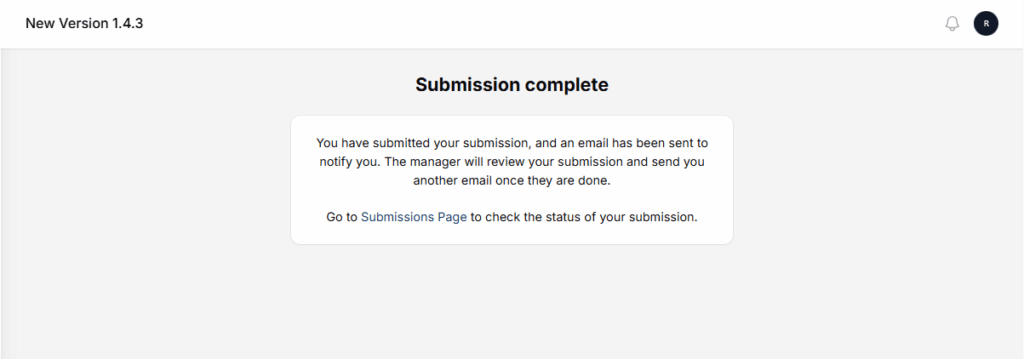
After successful submission, the paper is normally marked Queued. Leconfe records it for the editorial team and can send a confirmation email. If email is delayed, the in-app submission record is the reliable confirmation.
2. Editor Checks the Submission Queue
Managers and editors can find submissions under queues such as My Queue, Unassigned, Active, and Archived. Search and filters help narrow the list, but the editor should open the record and confirm its stage, status, track, author, payment condition, and assigned participants.
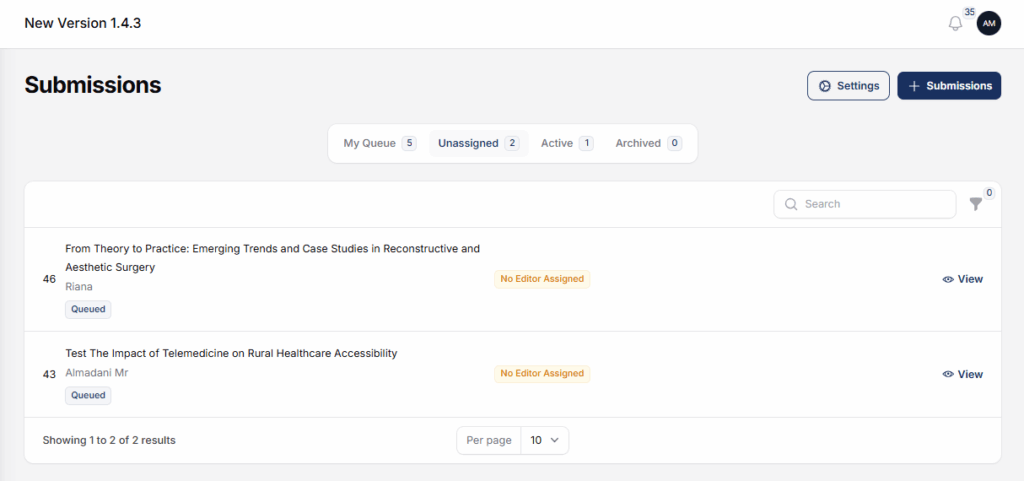
If the submission shows No Editor Assigned, assign an authorized editor before continuing. A paper may also be outside an editor’s view because of track scope, scheduled-conference role assignment, or a filter.
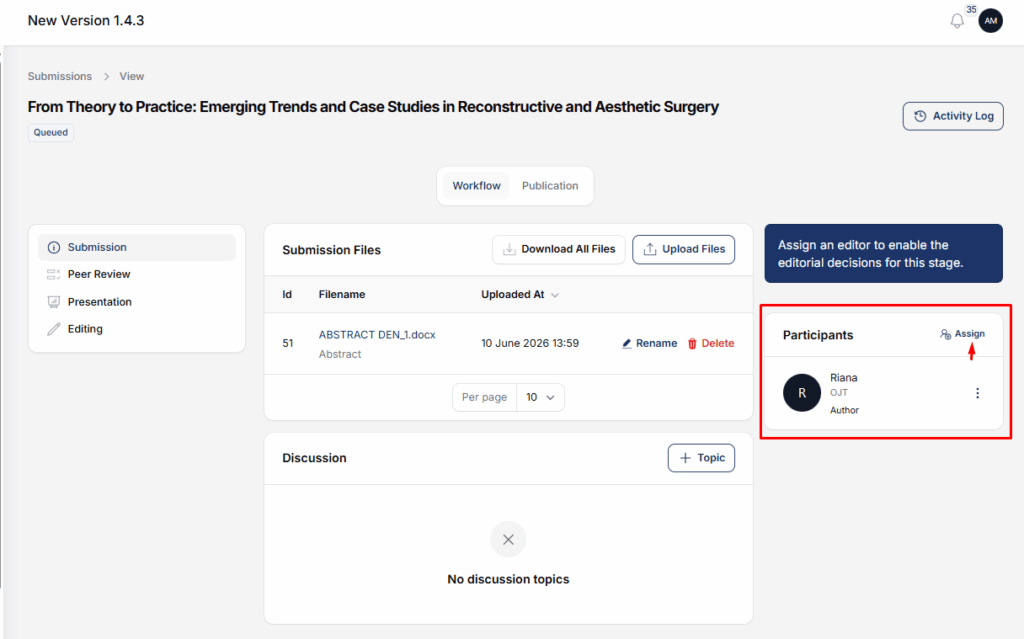
3. Assign an Editor
- Open the submission.
- Go to the Participants area.
- Select Assign.
- Choose the appropriate editor role.
- Select a user assigned to the correct scheduled conference.
- Review the notification recipient and message, or intentionally choose not to send a notification.
- Save and confirm that the editor appears in the participant list.
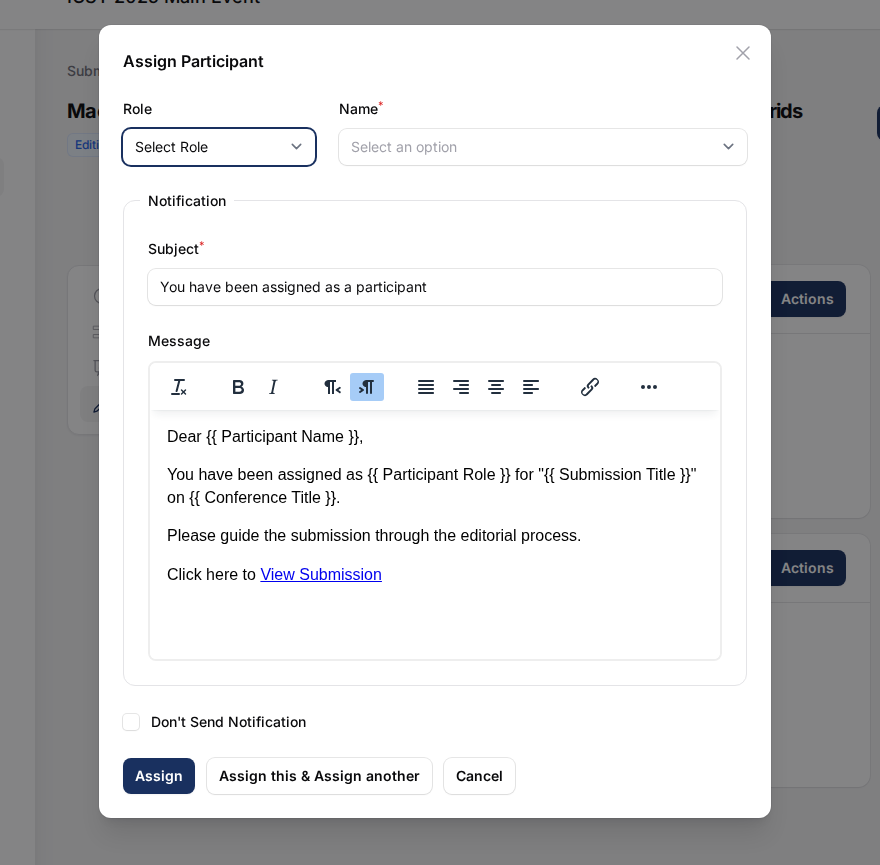
Use the minimum required permission. Do not grant full Manager access when a scheduled-conference or track-scoped editor role is sufficient.
4. Perform the Initial Editorial Screening
Before choosing a workflow action, check:
- whether the paper is within the conference and track scope;
- whether the metadata and contributors are complete;
- whether all required files are present and readable;
- whether files meet the configured blind-review requirements;
- whether the submission is a duplicate or test record;
- whether an editor has a conflict of interest; and
- whether conference policy requires peer review.
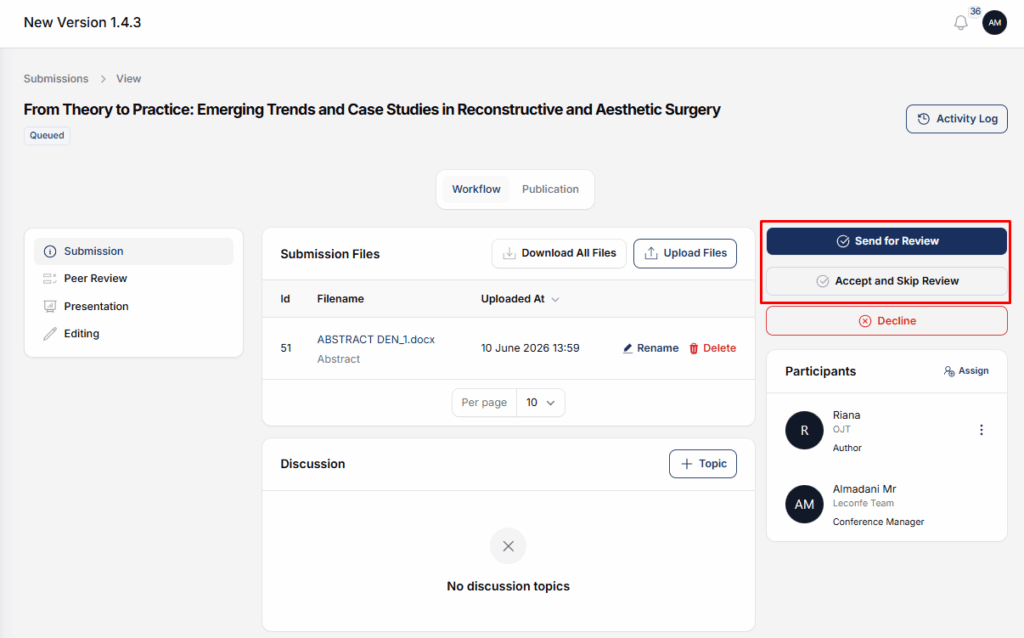
Send the Paper for Review
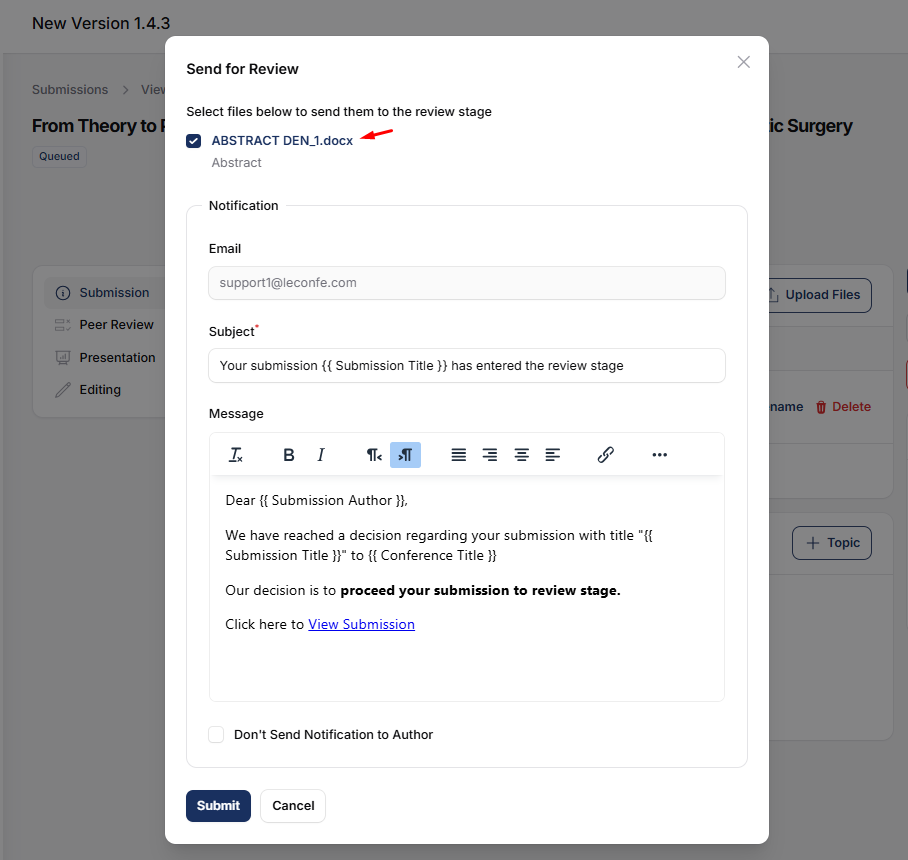
Use Send for Review when the paper needs formal reviewer evaluation. In Leconfe 1.5, this action can include:
- an optional name for the first review round;
- the author files to copy into the review stage;
- a submission-payment fee and add-on items when payment is enabled; and
- the author notification subject and message.
The paper moves to the Peer Review stage. Its status becomes On Review when no payment is blocking the workflow. If a submission fee is queued, the status can instead become On Payment until the payment is completed or resolved by an authorized administrator.
Skip Review
Use Skip Review only when conference policy allows the paper to bypass reviewer evaluation. Review the author notification before confirming. The paper moves to Presentation with the status On Presentation.
Decline at Initial Screening
Use the decline action when the submission should not continue. Confirm that the decision is authorized, review the recipient and message, and avoid including confidential internal comments in the author notification.
5. Understand Review Rounds in Leconfe 1.5
Peer review is organized into persistent rounds. Leconfe creates Round 1 when a paper enters Peer Review, or when an authorized editor first opens the peer-review area if the round has not yet been created.
- Review files, revision files, reviewer assignments, and peer-review discussions belong to a round.
- The open current round is the actionable round for new assignments and decisions.
- Earlier rounds remain visible as history.
- An authorized editor can rename a round.
- Starting the next round creates a separate evaluation cycle.
Check the selected round before every action. Assigning a reviewer or reading revision files in the wrong round can lead to an incomplete or misleading decision.
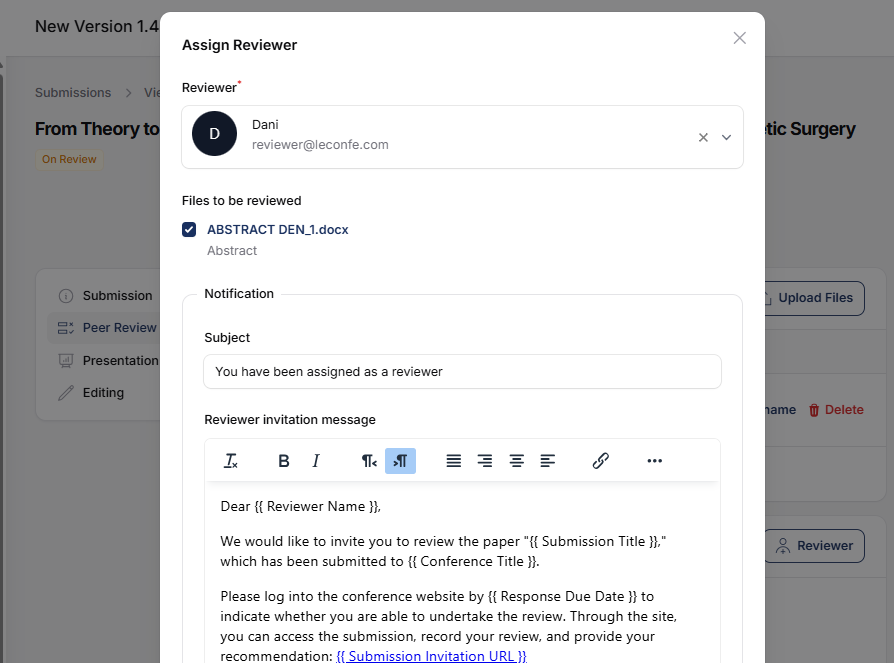
6. Assign Reviewers in the Active Round
Before assigning reviewers, configure an appropriate review form and confirm the review method. Then:
- Open the submission and select Peer Review.
- Select the current active review round.
- Open the Reviewers section and choose the assignment action.
- Select a reviewer assigned to the correct scheduled conference.
- Check for conflicts of interest.
- Select only the files the reviewer may access.
- Set the response and review deadlines.
- Select the review mode.
- Review the invitation recipient, conference name, subject, and message.
- Save and confirm that the reviewer appears in the selected round.
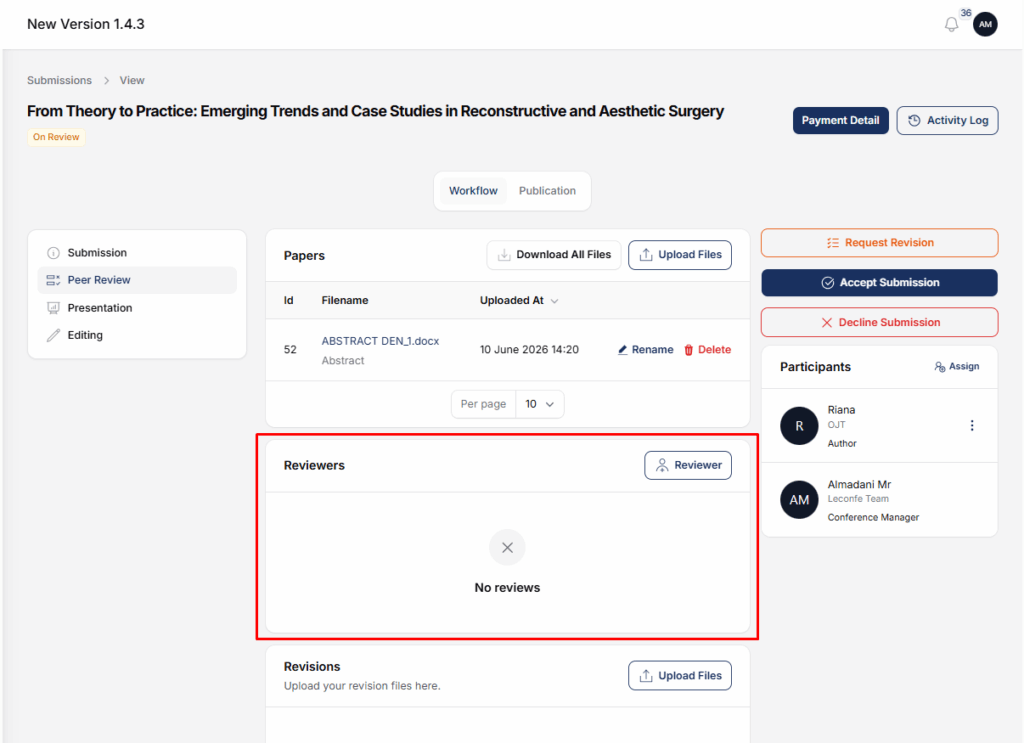
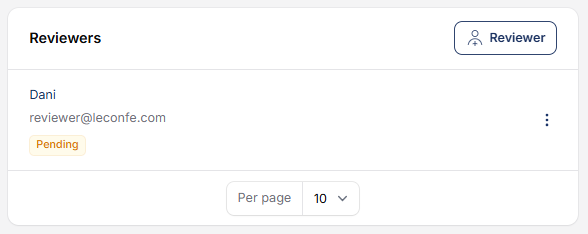
The displayed status may indicate that the response is pending, accepted, declined or canceled, overdue, or completed. If a reviewer declines, assign a replacement in the same active round. Check the current status before sending reminders or resending an invitation.
7. Reviewer Accepts or Declines the Request
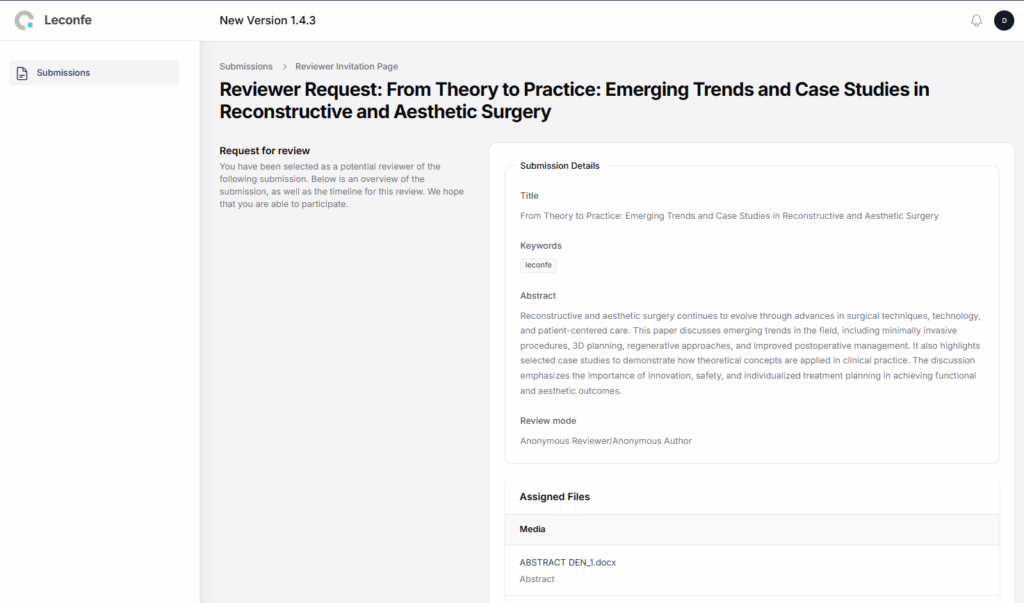
The reviewer opens the assignment and checks the paper details, permitted files, schedule, review mode, and conflict-of-interest considerations before responding.
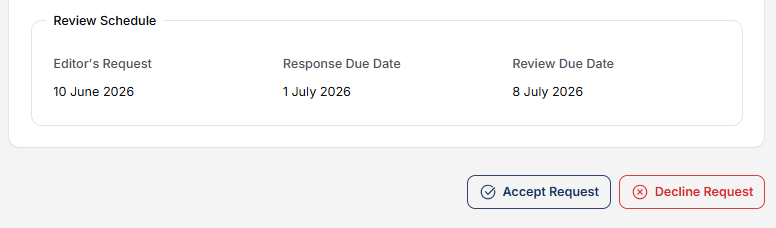
After acceptance, Leconfe opens the review form. After a decline, the editor should select a replacement. The reviewer should use the discussion or contact channel provided by the conference if a deadline extension or clarification is needed.
8. Reviewer Completes the Review
The reviewer reads the permitted files and completes all required review-form fields. Common response areas include:
- Review for Author and Editor: comments that may be shared with the author.
- Review for Editor: confidential comments intended only for the editorial team.
- Recommendation: the reviewer’s recommendation for the submission.
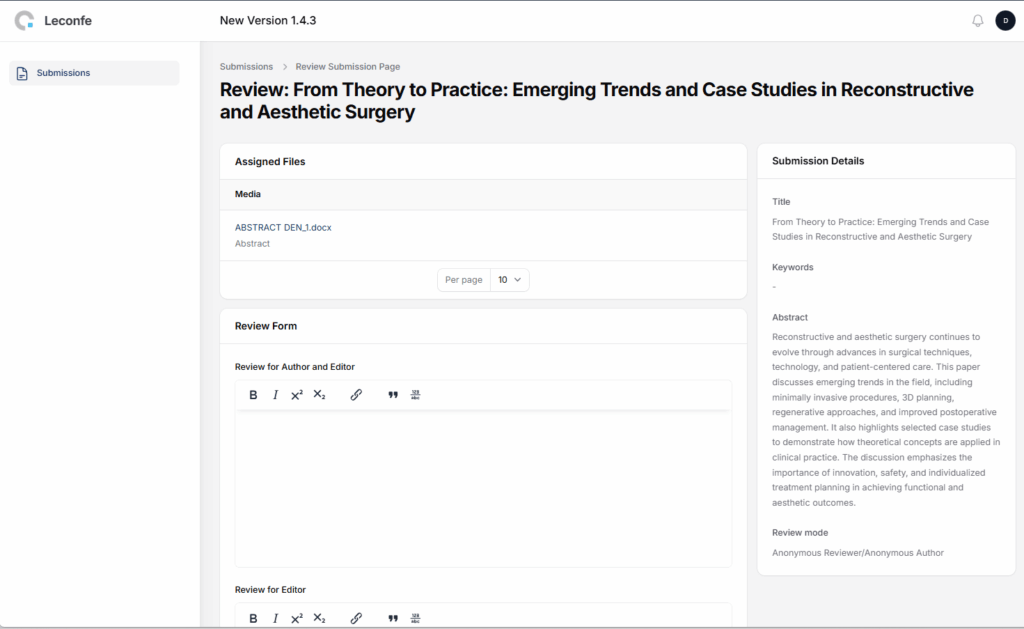
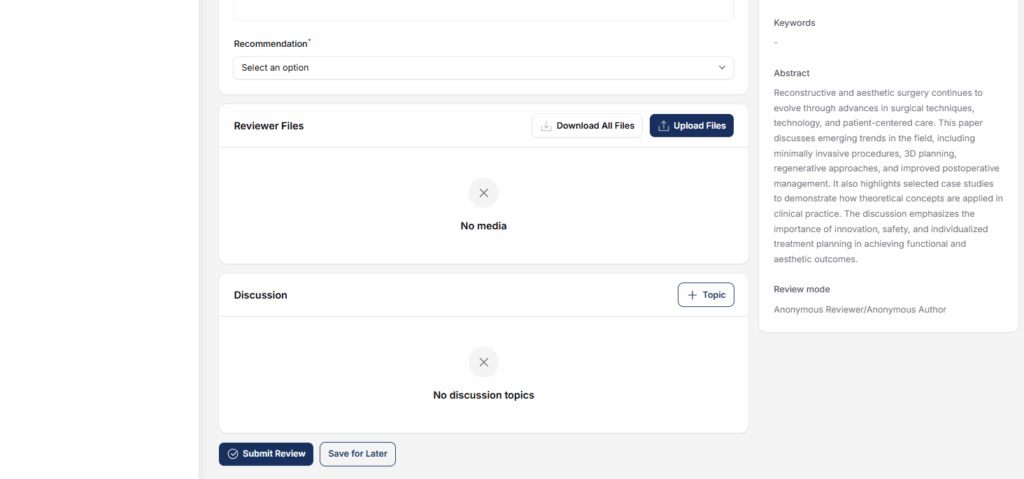
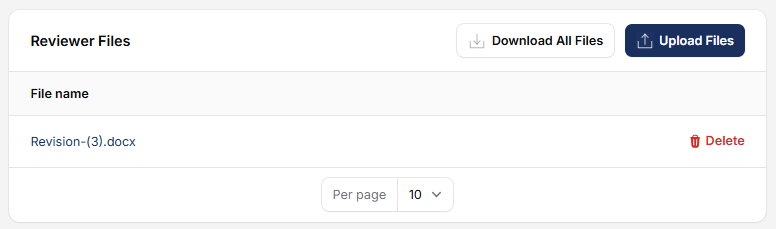
Reviewer-uploaded files can contain annotated feedback. Before uploading, remove unintended personal data and confirm the conference’s rules for the file. The editor must verify the intended audience before sharing reviewer files with an author.
For the reviewer’s complete instructions, see Completing a Peer Review in Leconfe.
9. Editor Reads the Review Result
After submission, the editor opens the reviewer record and checks the completion date, recommendation, author-visible comments, editor-only comments, and reviewer files. The editor may mark the review as read, adjust the recorded recommendation where permitted, and rate the review quality for internal use.
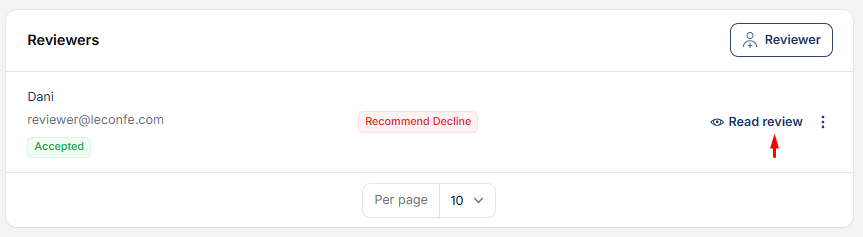
Before deciding, confirm that required assignments are complete or document why a decision is being made without them. A reviewer recommendation informs the decision but does not replace the conference’s authorized editorial judgment.
10. Editor Sends a Decision
In the current decision round, an authorized editor can use the appropriate action:
- Accept Submission: moves the paper toward Presentation according to the configured workflow.
- Request Revision: keeps the paper in Peer Review and asks the author to revise it.
- Decline Submission: records a declined outcome.
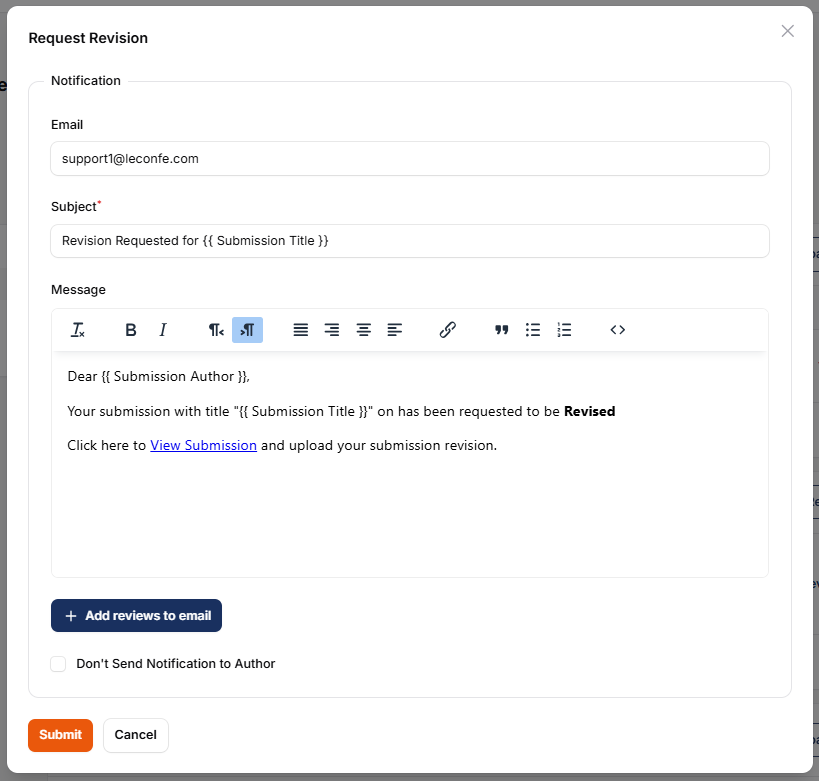
Check the recipient, subject, message, included review comments, and attachments. Do not expose editor-only comments or reviewer identity when the review method requires anonymity. If email delivery fails, the in-app decision history remains important and the administrator should check the outgoing-mail configuration.
When the Editor Requests Revision
Request Revision does not automatically need to create another formal review round. The author should:
- open the paper and current review round;
- read the decision, permitted comments, and reviewer files;
- prepare the revised manuscript;
- upload it under Revision Files;
- use a discussion when clarification is needed; and
- confirm that the upload is complete.
Leconfe 1.5 can notify assigned editors when the author uploads review or revision files. The editor should still verify the file in the selected round before proceeding.
When Another Formal Evaluation Is Required
Use Start Next Review Round when the revision needs a separate evaluation cycle. Give the round a useful name, choose the files to include, review the author notification, and confirm the new round. Assign reviewers only after selecting that new active round.
11. Use Discussions When Communication Is Needed
Discussions keep questions, replies, and files attached to the submission. In Peer Review, discussions are associated with the selected review round.
- Open the submission and correct workflow stage.
- In Peer Review, confirm the selected round.
- Create a specifically named discussion topic.
- Add only the participants who should see the conversation.
- Write the requested action and deadline.
- Attach only authorized files.
- Close the topic after the issue is resolved.
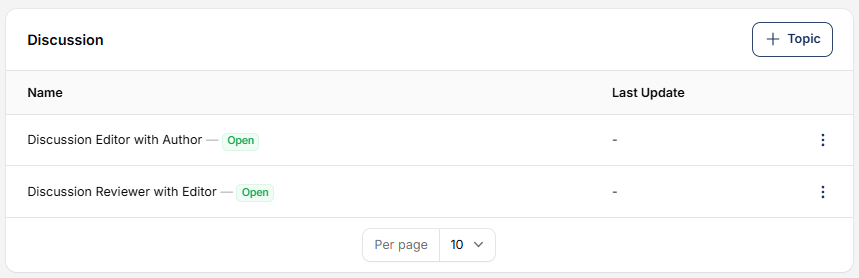
Protect reviewer anonymity. Review mode affects which identities, comments, and files may be visible. Check every participant before saving a peer-review discussion.
12. Move the Paper to Presentation
A paper reaches Presentation after the editor accepts it following peer review or intentionally skips review. The status becomes On Presentation. Use this stage for presentation type, links or files, thumbnail, scheduling, and other conference-specific presentation tasks.
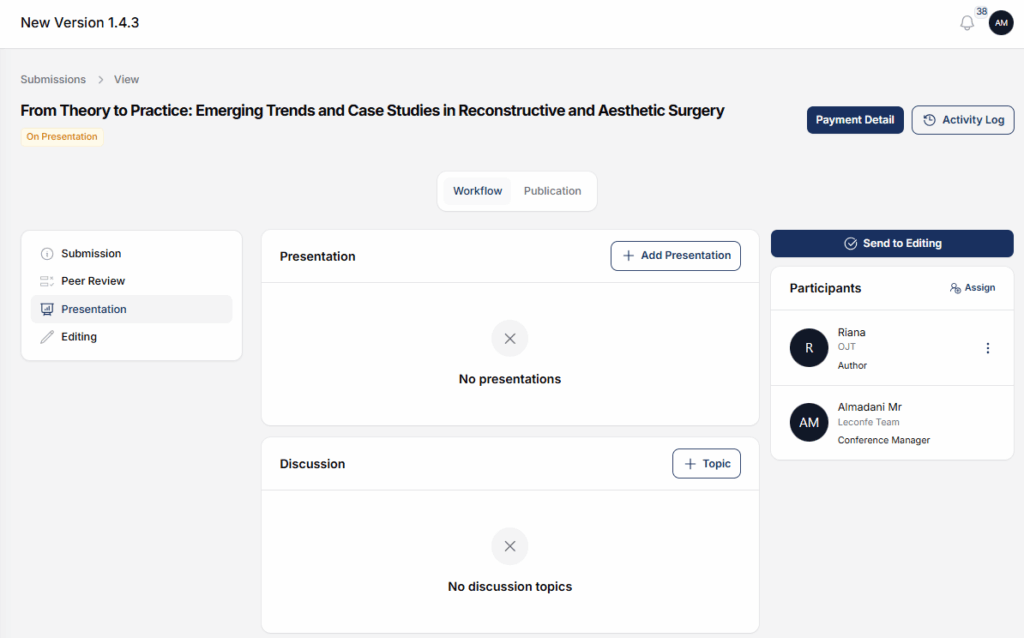
See Presentation Feature in Leconfe for the complete presentation workflow.
13. Move the Paper to Editing and Publication
When the presentation work is complete, an authorized editor selects Send to Editing. Leconfe moves the paper to the Editing stage and changes its status to Editing.
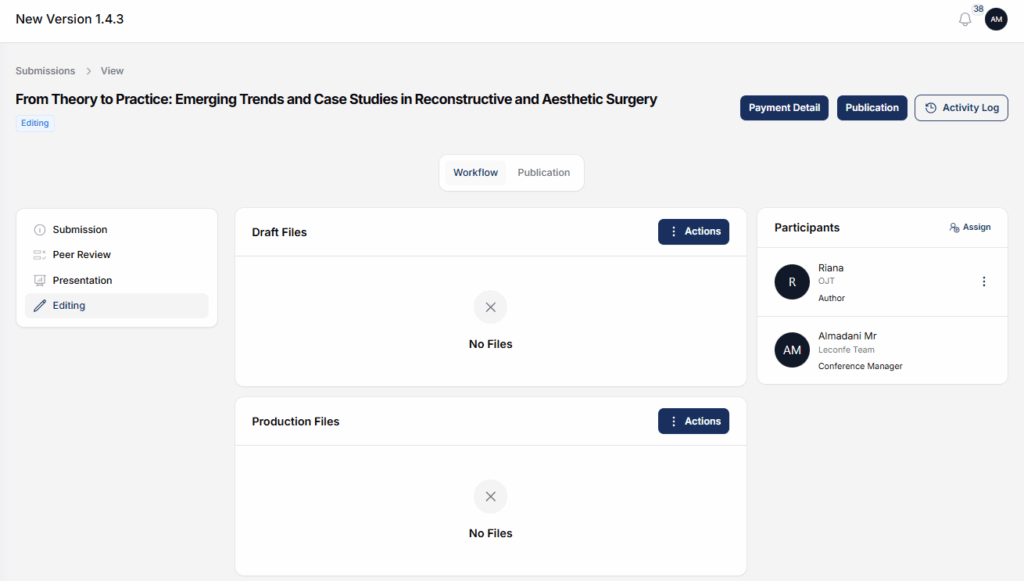
In Editing, complete the final files, title and abstract, contributor order, keywords, track, pages, identifiers, copyright and license, additional data, and payment checks. Assign the correct proceeding, preview the public article, and publish or schedule it according to conference policy.
For the complete publication procedure, see Managing Submissions, Peer Review, and Publication in Leconfe.
Exceptional Outcomes
- Reviewer declines: assign a replacement in the same active round.
- Payment remains pending: verify the billing record and payment settings; only an authorized administrator should settle an externally verified payment.
- Payment is declined: follow the conference payment and appeal policy before attempting to continue the paper.
- Author requests withdrawal: an authorized editor or manager reviews and accepts or rejects the request; do not delete the submission to represent withdrawal.
- Paper is declined: the active workflow ends, while the submission history remains available according to permissions.
Troubleshooting
The Paper Remains Queued
- Check whether an editor is assigned.
- Confirm the paper is in the expected track and scheduled conference.
- Open the paper and check for incomplete screening actions.
The Paper Shows On Payment
- Open Payment Detail and confirm the fee and payment status.
- Check whether the author completed the configured payment route.
- Do not mark the payment paid without verified external evidence and authorization.
Add Reviewer or a Decision Action Is Missing
- Confirm that the paper is in Peer Review.
- Select the current open review round.
- Check the user’s editor permissions.
- Confirm that the paper has not already moved to another stage or final status.
The Reviewer Cannot See a File
- Confirm the reviewer accepted the assignment.
- Check that the file belongs to the selected review round.
- Confirm that the file was included in the reviewer assignment.
An Email Was Not Received
- Check the recipient and scheduled-conference context.
- Check the in-app submission, reviewer, decision, or discussion record before resending.
- Ask the recipient to check spam or junk folders.
- Have the administrator verify the outgoing-mail configuration and available mail log.
Final Role-Based Checklist
Author
- Metadata, files, contributors, and required declarations are complete.
- The submission or revision shows as successfully uploaded.
- Questions are posted in the correct discussion topic.
Reviewer
- The correct assignment and files were reviewed.
- Author-visible and editor-only comments are separated.
- The final action is Submit Review, not only Save for Later.
Editor or Manager
- The paper’s stage, status, payment condition, and active review round are confirmed.
- Assignments, deadlines, files, and notification recipients are correct.
- The decision is recorded in the current decision context.
- Presentation and Editing handoffs are complete.
- The final publication record has been previewed and verified.
Result: Every participant knows the next action, the review history remains round-aware, and the paper can progress safely from submission to publication.


