
Applies to: Leconfe 1.5.
Important: In Leconfe 1.5, presenter registration is handled through the submission workflow. There is no separate Register as Presenter page. A presenter creates a submission as an Author and, when required by the conference, completes a Submission Payment.
What Presenter Registration Means in Leconfe 1.5
A presenter is normally an author or speaker who submits an abstract, paper, poster, or presentation proposal to a scheduled conference.
The presenter workflow may include:
- Creating a submission.
- Providing the title and information requested by the organizer.
- Selecting a conference track.
- Agreeing to the submission checklist and privacy statement.
- Selecting a Submission Payment fee and optional add-ons.
- Following the review, presentation, editing, and publication stages.
The exact fields, fees, workflow stages, payment methods, and deadlines are determined by the conference organizer.
Before You Start
Make sure that:
- You have created a Leconfe account.
- You can sign in to the correct scheduled conference.
- The conference is currently accepting submissions.
- You have prepared the title and any abstract, paper, poster, or supporting files requested by the organizer.
- You know which conference track applies to your work, if the conference uses multiple tracks.
- You have read the conference submission requirements and privacy statement.
Step 1: Sign In
Open the conference website and sign in using the email address and password associated with your Leconfe account.
If you do not have an account, create one first and then return to the scheduled conference.
You do not need to select a separate Presenter role before creating your first submission. When a regular user saves a submission, Leconfe assigns the Author role automatically when needed.
Step 2: Open Submissions
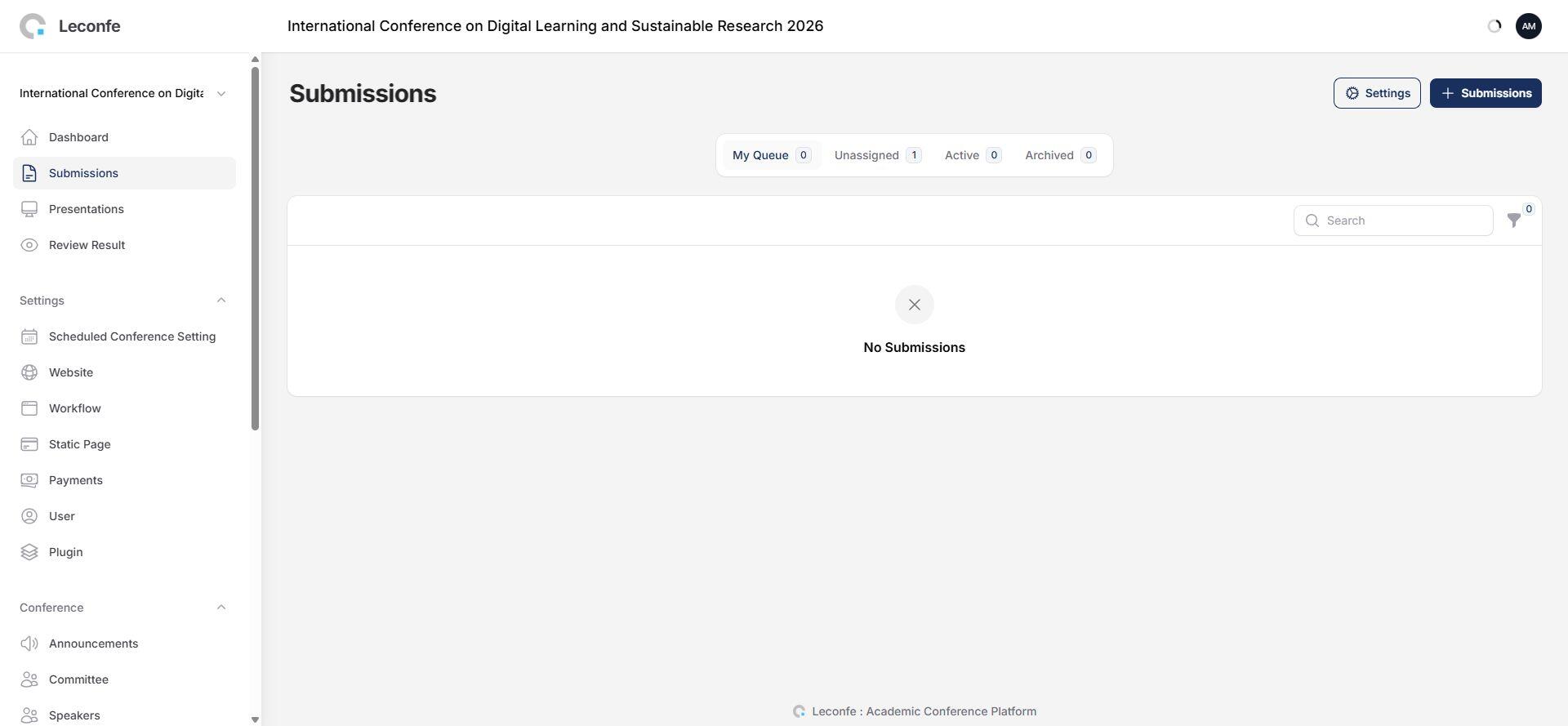
From the conference Dashboard, open Submissions.
Select the create or plus action to open the Make a Submission page.
If the conference is not accepting submissions, Leconfe displays a notice such as This conference is not accepting submissions at this time. Check the conference timeline or contact the organizer.
Step 3: Complete the Submission Information
Enter the submission title and complete every field requested by the organizer.
Depending on the conference configuration, the form may request:
- Abstract or paper information.
- Presentation type.
- Author or institutional information.
- Keywords or topics.
- Supporting documents.
- Other conference-specific information.
Fields marked as required must be completed before the submission can be saved. Uploaded files should follow the format and size instructions displayed on the form.
Step 4: Select a Conference Track
If the conference has more than one active track, select the track that best matches your submission.
Read any policy or instructions displayed after selecting a track. If only one track is available, Leconfe may select it automatically and hide the track selector.
Step 5: Select a Submission Payment Fee
If Submission Payment is enabled, the form displays a required Payment Fee section.
Select the fee that applies to your submission or presenter category. Available options and prices are configured by the organizer and may include regular, student, early-bird, international, or complimentary fees.
Important: Leconfe 1.5 calls this a Submission Fee or Submission Payment, not a presenter-registration fee.
If the Payment Fee section is displayed but contains no options, contact the organizer. An active Submission Payment fee must be available before the form can be saved.
Step 6: Select Add-on Items
Add-on items appear only when they are available for the selected payment fee.
Examples may include:
- Workshops.
- Conference dinner or meal packages.
- Printed proceedings.
- Merchandise.
- Additional certificates.
Use the quantity control to select the number of units you need. Leave the quantity at zero for optional items you do not want.
Changing the payment fee may change the available add-ons. Review the add-on quantities again after changing fees.
Step 7: Review the Checklist and Privacy Consent
Read the submission checklist and confirm that your work meets the conference requirements.
You must also agree to the privacy statement before saving the submission.
If a Submit As option is displayed, select the appropriate role. Most new presenters submit as Author.
Step 8: Review and Save
Before saving, verify:
- The submission title.
- All required conference-specific information.
- The selected track.
- The selected Payment Fee.
- The quantity of every add-on item.
- The submission checklist confirmation.
- The privacy consent.
Select Save.
Do not close or refresh the page while Leconfe is processing the submission. When the submission is saved successfully, Leconfe redirects you to the submission detail page.
What Happens After You Save?
Your submission appears in Submissions, normally under My Queue. Use the submission detail page to follow its status and complete any tasks requested by the conference.
The submission may move through stages such as:
- Submission or Call for Abstract.
- Peer Review.
- Presentation.
- Editing.
- Proceeding or Publication.
The available stages and actions depend on the organizer’s workflow configuration.
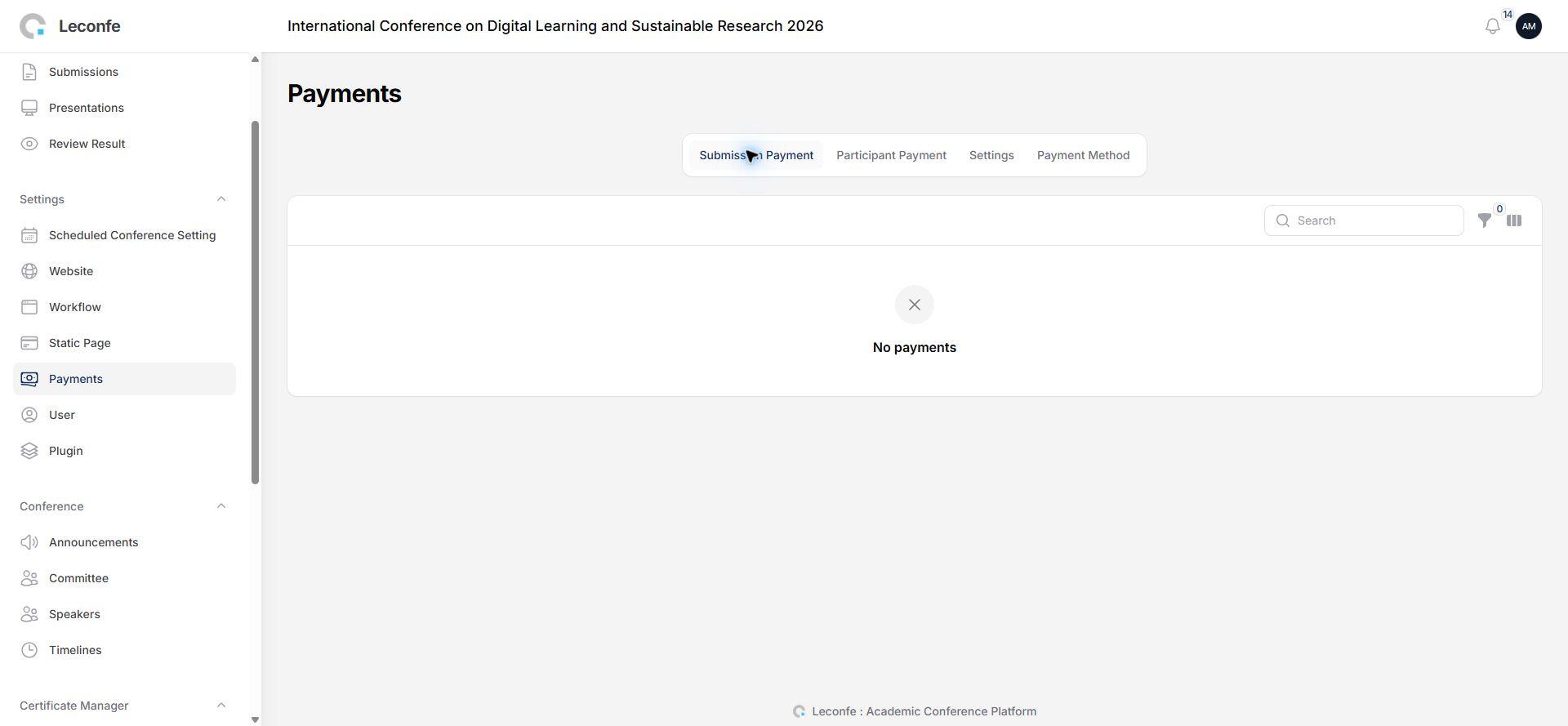
Completing Submission Payment
If a payment record was created when you saved the submission, a Payment Detail action becomes available when the configured billing stage is reached or when an invoice is available.
For an existing submission without a payment record, the submission detail page may display a Submission Payment action. Select it, choose the required Payment Fee and add-ons, and submit the payment information.
The available payment method depends on the payment plugins and settings configured by the conference organizer.
When Is the Invoice Sent?
An invoice is not always sent immediately after the submission is saved.
The organizer can configure Submission Payment in one of two modes:
- Automatic: Leconfe sends the invoice after the submission reaches the configured billing stage.
- Manual: The organizer creates or sends the invoice manually.
The configured billing stage may be Submission, Peer Review, Presentation, or Editing. An automatic invoice is not sent when the submission has been declined or withdrawn.
If you expected an invoice but did not receive one, check the Payment Detail page, your spam folder, and the email address associated with your Leconfe account. Contact the organizer if the invoice is still unavailable.
Understanding the Payment Detail Page
Depending on the conference configuration and payment status, the Payment Detail page may display:
- The selected Payment Fee.
- The base fee.
- Add-on items and quantities.
- The total amount.
- The payment availability period.
- The available payment method.
- The invoice and invoice-email status.
- The payment date and payment method after payment is confirmed.
- A receipt when receipts are enabled and the payment has been marked as paid.
If the payment period has not opened, Leconfe displays the opening date. If the payment period has ended, contact the organizer before attempting another payment.
Submission, Presenter Registration, and Participant Registration
These terms describe different activities:
- Submission sends an abstract, paper, poster, or proposal into the conference workflow.
- Presenter registration is the presenter-facing process described in this guide: creating the submission and completing Submission Payment when required.
- Participant registration confirms attendance and uses a separate Participant Payment workflow.
Depending on conference policy, a presenter may also need to complete Participant Registration. Do not register twice unless the organizer requires both workflows.
Troubleshooting
I Cannot Create a Submission
The submission period may be closed, there may be no active track available to you, or the conference may restrict the selected track. Confirm that you opened the correct scheduled conference and contact the organizer.
The Page Says the Conference Is Not Accepting Submissions
The submission timeline is currently closed. Check the conference deadline and contact the organizer if you believe submissions should still be open.
No Payment Fee Is Displayed
Submission Payment may be disabled or the organizer may not have activated a Submission Payment fee. If the Payment Fee field is required but empty, contact the organizer.
I Cannot Find Submission Payment
The feature may be disabled, the submission may still be incomplete, or a payment record may already exist. If a payment record exists, look for Payment Detail instead.
I Cannot Open Payment Detail
The configured billing stage may not have been reached and an invoice may not yet exist. Continue following the submission workflow or contact the organizer.
I Did Not Receive an Invoice Email
The organizer may use manual invoice mode, the billing stage may not have been reached, or email delivery may be delayed. Check Payment Detail and your spam folder, then contact the organizer.
The Payment Button Is Disabled
The payment period may not have opened or may already have ended. Read the availability notice on the Payment Detail page.
I Selected the Wrong Fee or Add-on
Contact the organizer before making payment. Only authorized conference staff may be able to change an existing Submission Payment record.
My Certificate Is Not Available
Certificate availability is determined by the organizer and any certificate plugin installed for the conference. Saving a submission does not automatically guarantee that a certificate will be issued.


