
Applies to: Leconfe 1.5.0-beta.3
Audience: Conference Managers, administrators, and prospective reviewers
Short answer: The Reviewer option is displayed only when Allow Registration is enabled and the scheduled conference allows users to self-register as Reviewer. It may also be unavailable when the account already has an assigned role or when the user is opening a different scheduled conference.
Why This Happens
The Reviewer option can be missing for one or more of the following reasons:
- Allow Registration is disabled. Public users cannot register for the scheduled conference.
- Reviewer self-registration is disabled. Registration may be open, but Reviewer is not selected under the self-register role setting.
- The user is opening the wrong scheduled conference. Role settings are configured separately for each scheduled conference.
- The account already has another role. The role-selection screen is mainly shown to an account that has not yet received an applicable role.
- The user is not signed in. Role selection is associated with a Leconfe account.
- The scheduled conference is not ready for public use. A draft or incomplete event may not expose the expected registration path.
Enable Reviewer Self-Registration
A Conference Manager can check the setting as follows:
- Sign in with a Conference Manager or administrator account.
- Open the correct Scheduled Conference.
- Open Website, and then select the Setup tab.
- Select the inner Setup section.
- Enable Allow Registration.
- Under Allow User to self register as role, select Reviewer.
- Select Save.
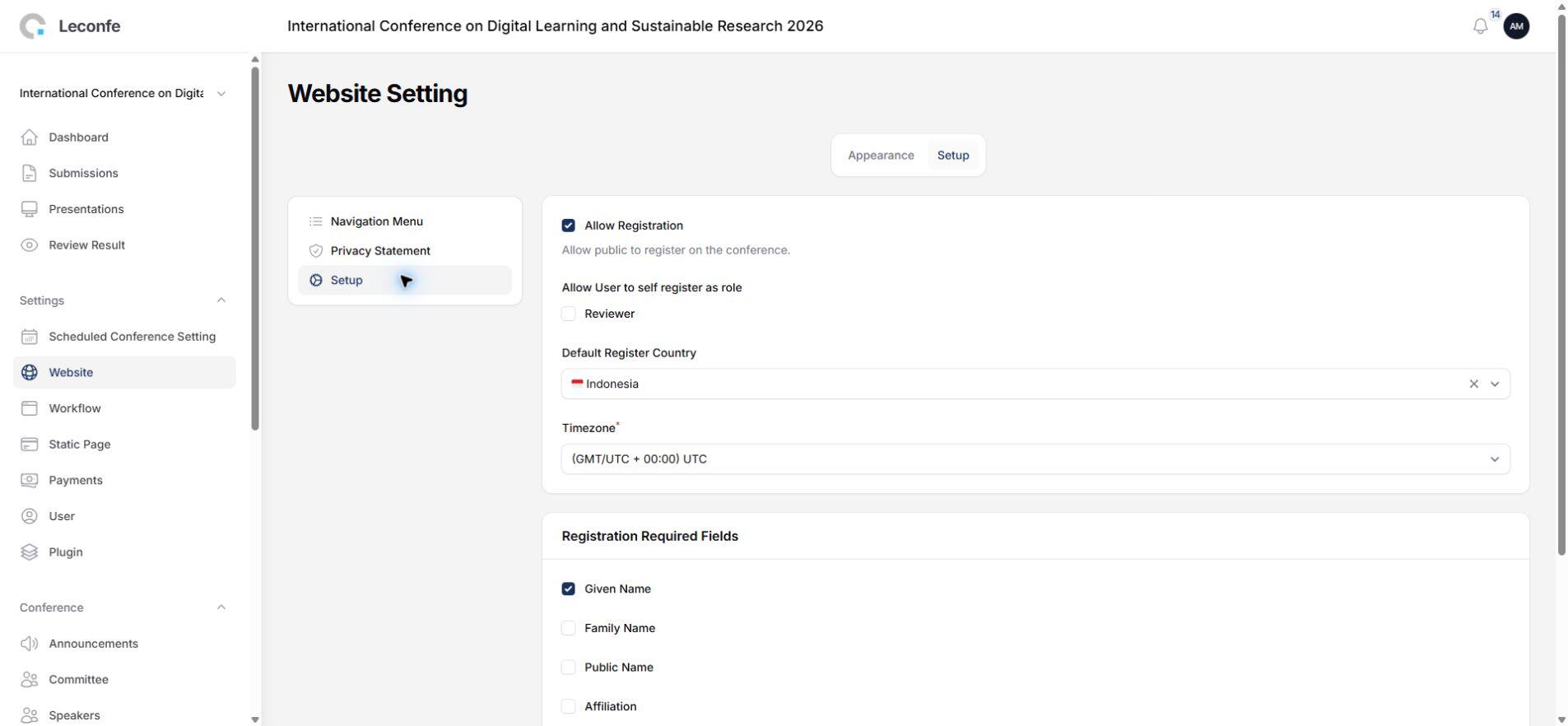
Policy note: Enable self-registration only if the conference accepts reviewer applications from public users. If reviewers must be selected by the committee, leave this option disabled and assign or invite reviewers manually.
If the User Already Has Another Role
Do not ask the user to create another account. A single Leconfe account can have more than one role in the same scheduled conference.
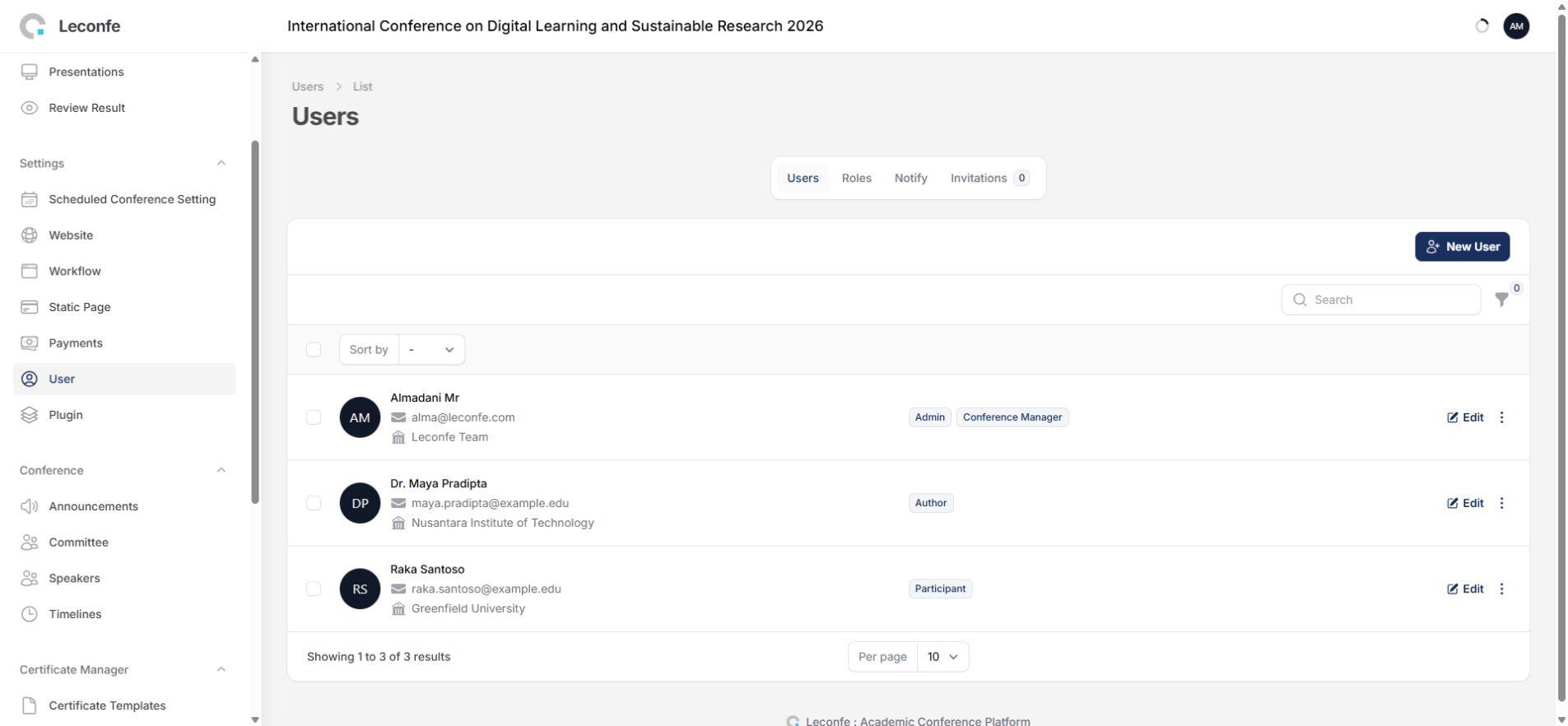
- Open User in the scheduled conference.
- Find the account by name or email address.
- Edit the user and add the Reviewer role, or send a reviewer invitation using the same email address.
- Save the change.
How to Confirm the Fix
- Use a test account that does not yet have a role in this scheduled conference.
- Sign in and open the scheduled conference Dashboard.
- Confirm that the Reviewer option is displayed.
- Select Reviewer and continue only if public self-assignment is part of the conference policy.
If the option is still missing, confirm that the setting was saved in the correct scheduled conference, then sign out and sign in again. A Conference Manager can bypass self-registration by assigning the role manually.


