
Applies to: Leconfe 1.5.0-beta.3
Audience: Administrators and Conference Managers
Short answer: Open the scheduled conference’s Website > Setup > Setup settings and disable Allow Registration. Existing users can still sign in, while new public registration for that scheduled conference is closed.
Choose the Correct Setting
| What You Want to Stop | Setting to Change | What Remains Available |
|---|---|---|
| New public registration for one scheduled conference | Disable Allow Registration in Website > Setup > Setup. | Existing users can still sign in. Managers can continue handling approved users. |
| Registration across several scheduled conferences | Check and disable Allow Registration separately in each applicable scheduled conference. | Other conferences can remain open when their setting is enabled. |
| Public Reviewer role selection | Disable Reviewer self-assignment in Website > Setup. | Managers can still assign or invite selected reviewers. |
| New paper submissions | Change the submission Open Date and Close Date in Workflow > Submissions > Submission. | Account and participant registration are not automatically closed. |
Close Public Registration
- Sign in as a Conference Manager or administrator.
- Open the correct Scheduled Conference.
- Open Website.
- Select the top Setup tab, and then select the inner Setup section.
- Disable Allow Registration.
- Save the setting.
- Open the public scheduled conference in a private browser window and confirm that new registration is blocked.
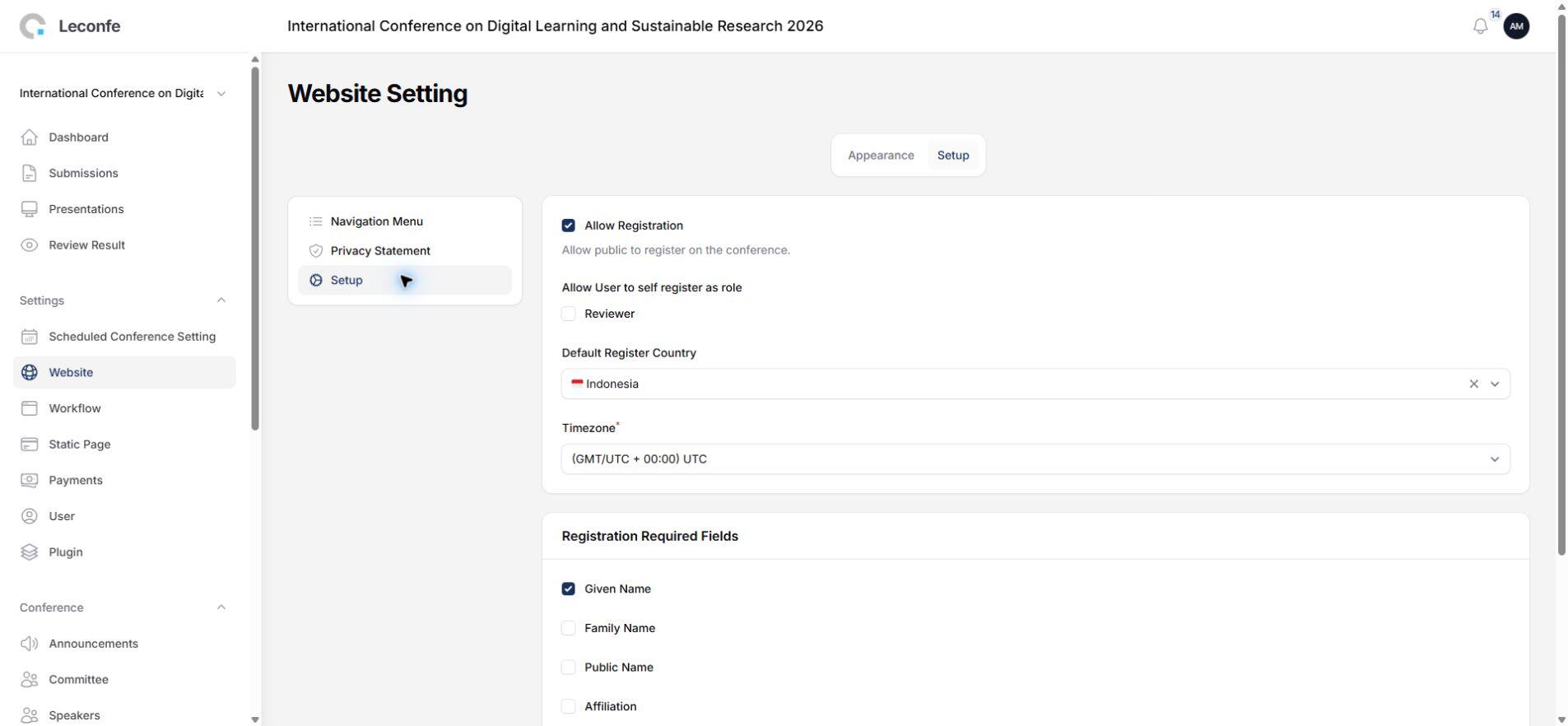
Important: Removing the Register item from the navigation menu only removes the visible link. Use Allow Registration to close the registration function itself.
If the Leconfe installation contains several scheduled conferences, check each event separately. Disabling registration in one scheduled conference does not prove that registration is closed in every other event.
Important Before Closing Registration
- Announce the closing time and timezone before changing the setting.
- Keep an invitation-based process for approved late users if required.
- Do not delete existing user accounts merely to close registration.
- Test both while signed out and while signed in with an existing account.
- Confirm that login remains available for authors, reviewers, participants, and committee members who already have accounts.
How to Confirm the Result
- Sign out of Leconfe.
- Open the public conference website in a private browser window.
- Confirm that registration is blocked for the intended scheduled conference.
- Sign in with an existing account and confirm that normal login still works.


